I tested 5 Best AI Note Takers in 2026 [Free & Paid]
Sanduni
Growth Content Editor

I analysed the top 5 best AI note-takers of 2026: Jamie, Granola, Fireflies, Otter, and Fathom. I installed all their five desktop apps and tested them at the same time on their free versions, comparing live transcription, summary accuracy, and speaker identification on the same audio (a public earnings-call recording).
For the rest, I did a full feature research and pricing review. You'll also find a side-by-side comparison table with an expandable answer in every cell, my hands-on reviews, and what their own users like and dislike about each product. The accuracy test comes with a downloadable document, backed by word-for-word quotes and screenshots, which means you can verify every score yourself.
Jamie became part of how we work faster than we expected. What I love about Jamie is that it never forgets. Every decision, every idea, every follow-up is right there when we need it. Especially, the focus on data privacy is crucial for a company like ours.

Toni Stork
Founding Partner & CEO at OMMAX
Professional Services / Consulting · 250-500 employees
My honest top 5 AI note takers picks for 2026
After testing all 5 AI meeting note takers (Jamie, Fathom, Otter, Fireflies, and Granola), here's how I'd categorise them so you can jump straight to the one that fits how you actually work:
- Best overall: Jamie (accurate, private, bot-free, strong in almost every category)
- Best free: Fathom (unlimited recording + transcription, no time cap; Jamie, Fireflies, and Granola also have solid free tiers)
- Best for accuracy: Jamie (top of our test on transcription and who-said-what)
- Best for teams/CRM: Otter and Fireflies (structured templates, CRM sync, deep integrations), with Jamie close behind
- Best for solo/simple: Granola and Jamie (calm, minimalist, bot-free)
Five More AI Note Takers' Worth Knowing
Sooner or later somebody sends you a link to one of these, and you will want to know what it actually does before you download a thing; none of them was in my test, but after years of researching about tools here is the one job each of them is genuinely good at:
- Best for questioning documents you already have: Gemini Notebook: For source-grounded answers, podcast-style Audio Overviews, and instant mind maps
- Best for cutting background noise while it records: Krisp: For noise cancellation, background voice removal, and real-time accent conversion
- Best for running the meeting as well as the notes: Fellow: For collaborative agendas, bot-free recording, and Ask Fellow answers
- Best for recording with no laptop open: Plaud NotePin: For wearable, one-touch recording, and instant AI summaries,
- Best as a browser extension: Tactiq: Live transcription in Google Meet, Zoom and Microsoft Teams, 10 free transcripts a month
You can ask questions about the meetings or lectures you record, the way you would with Gemini Notebook, through Ask Jamie, though we do not have Krisp’s noise cancellation (yet!). We cover the entire meeting note-taking experience that Fellow does.
While Fellow sends agendas before the calls, Jamie sends you daily briefs before your calls, too. Though not exactly the same, it gives you a short overview of the meeting before you jump in. You can also record in-person meetings on the laptop you already carry or on your phone.
This means you do not have to carry an extra $159 recorder to do it, though it does look fancy, I will give them that. As for Tactiq, yes, we do live transcription too, and on every meeting platform, not just Google Meet, Zoom, and Microsoft Teams.
Now, let's get back to how I tested the 5 AI meeting note-takers (Jamie, Fathom, Otter, Fireflies, and Granola).
Here's how I tested all 5 AI note-takers and their results
I downloaded all five desktop apps onto one Mac and ran the same ~11-minute Alphabet Q1 2026 earnings call through every one at the same time, then scored each out of 100 on summary, transcription, and speaker identification, marked against what was actually said.
To stay accurate, we checked across Alphabet's own published remarks, its SEC earnings release, and the recording itself, and treated the Motley Fool transcript only as a secondary cross-check, since it skips the intro and carries its own typos. Every score below is backed by verbatim proof you can check in our full scoring and receipts.
Every score is backed by the receipts.
Every number above is backed by verbatim proof, and it’s all here for you to read.
Overall Comparison Table on the best AI note takers
This table contains the overall comparison information of all the best 5 AI note takers; Jamie, Fathom, Granola, Otter, and Fireflies. You can also expand the cells for more information.
What are the best AI note takers?
1. Jamie review: private, bot-free, flawless on speakers identification, best for confidential meetings
Verdict
You're going to love Jamie if you're looking for an extremely secure, privacy-focused meeting assistant. Jamie runs on your own PC or laptop, and on your mobile device, which means no bot joins the meeting and nobody has to let a stranger into the call. You obtain verbal consent in your own words, and you can switch on the optional Automated Recording Notice email and the meeting chat notice that posts inside the call.
The reliability is also incredible in terms of the accuracy of notes, and in identifying each speaker and pairing those speakers across multiple meetings. Jamie is ideal for professionals who require absolutely clean, confidential recordings of who said what.
- Who is Jamie for?: Any professional requiring extremely sensitive/confidential high-stakes meetings where they will have complete confidence in knowing exactly who said what during the meeting, with a bot-free recording experience.
- Who should consider thinking twice about using Jamie? Anyone who wants extremely structured and visually appealing summaries/notes that are instantaneously interesting and easily readable/glanceable.
- Take away: If you require extreme levels of confidentiality and/or the ability to identify with precision who said what with one of the highest accuracy notes, then keep Jamie. But you'll likely spend some quality time reading through the summaries, and you can still cut that time by asking what you need to know straight from Ask Jamie.
What is Jamie?
Jamie is a completely bot-free AI note taker, available on macOS, Windows, iOS, Android and the web. This means that when you use Jamie to record any meeting, online or in person, there is never a bot joining the meeting. The disclosure comes from you instead. You obtain verbal consent in your own words at the top of the call. You can also switch on the optional Automated Recording Notice email, and the meeting chat notice that posts inside the call.
With Jamie, you can quickly turn any meeting into a set of organised meeting notes (structured notes); a full transcription of the meeting; and action items in just about 30 seconds.
Additionally, Jamie can understand and transcribe speech in 100+ languages and has speaker memory which will learn your voice(s) over time.
Jamie is developed by a German company, is GDPR compliant, deletes all audio once your meeting notes are complete, encrypts your data on EU servers, and uses your data exclusively to provide service to you. Jamie does not use your data to develop/train their AIs.
Key Features Of Jamie
Jamie Records Your Online Meetings From Your Own Machine, With No Bot Joining the Call
Jamie will record the audio of your online meetings (or in person meetings) from your own computer, and nothing is added to the meeting as a participant. This design choice was made for one reason. We would rather have you disclose the fact that someone is being recorded, through verbal consent in your own words, the optional Automated Recording Notice email, or the meeting chat notice, than a stranger being listed as an attendee in your client's meeting.
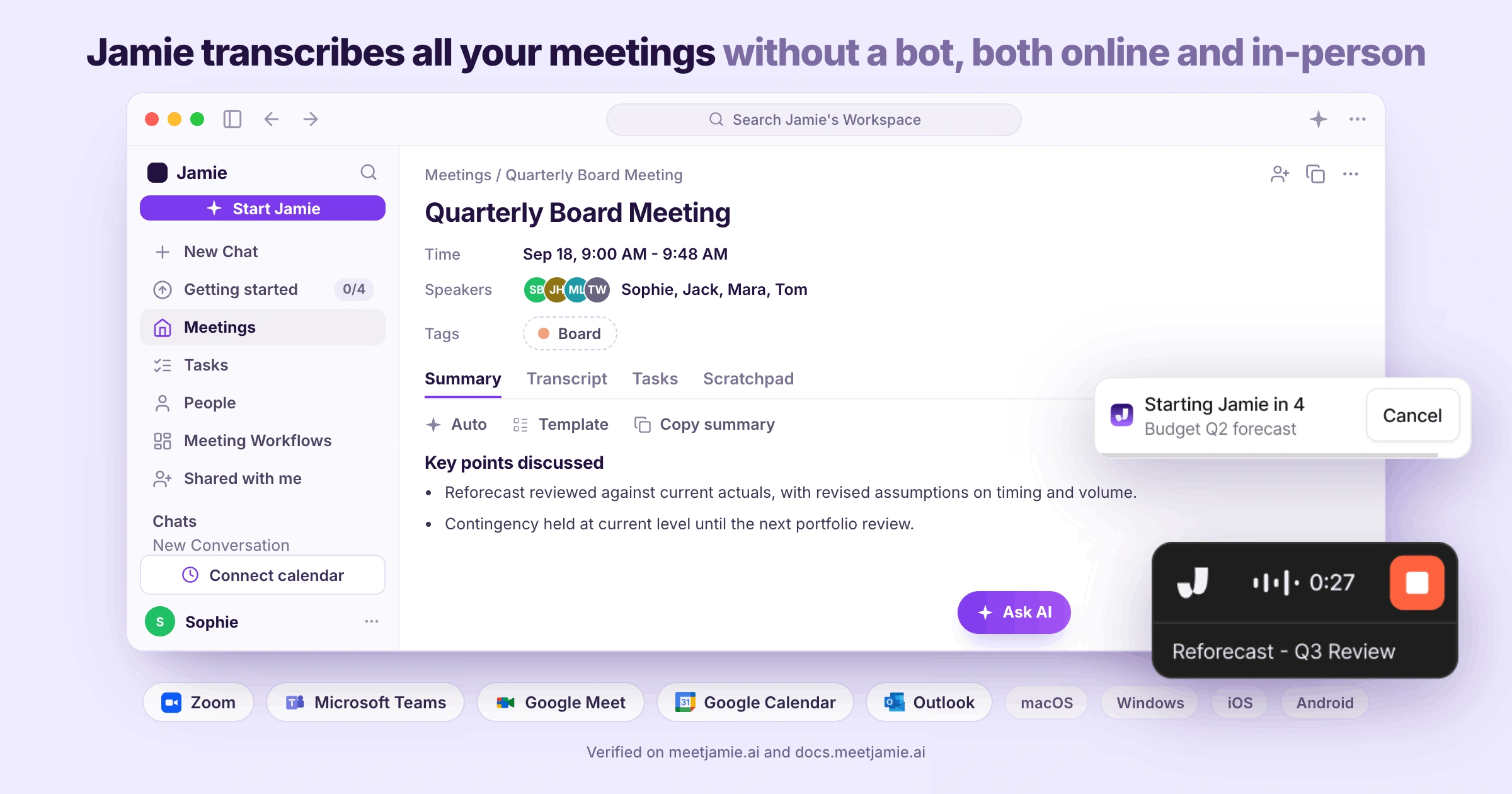
Before your first call of the day starts, you will want to know about Jamie's recorder, which meeting platforms we cover, if Jamie can start and stop the recording on its own, and how your calendar fits into it:
- Recorder
You launch Jamie from a very small floating widget, which floats on top of whatever window you are currently in. You can drag the Jamie widget to any location on your monitor, and it carries the title of your meeting and displays how long into the meeting you are if expanded. Additionally, you can change your microphone at any point during the meeting without stopping the recording. Every plan includes this feature.
- Mic Following
As soon as you switch from your laptop microphone to your AirPods mid call, Jamie automatically changes to use the new microphone too. Jamie tracks the microphone used by your meeting app and therefore does not create recordings that go faint after switching microphones.
- Online meeting platforms
Jamie can transcribe on every meeting platform on your computer, Microsoft Teams, Zoom, Google Meet and Webex included, you record each time you have an online meeting because Jamie records the audio from the machine itself instead of having Jamie join the meeting as participants do, therefore, there is no supported platform listing for you to look at prior to setting up recordings, on every plan including the free plan.
- Auto-start and auto-stop recording
Jamie starts and stops the recording at the beginning and end of each meeting, and a countdown runs first so that you are able to stop or cancel either of those actions; additionally, you may stretch that countdown to thirty seconds or a full minute if twenty seconds feels quick.
- Calendar connection
Once you connect Google Calendar or Outlook to Jamie, Jamie will match what was recorded to the meeting name within your calendar, and automatically name the recording with the correct meeting title when sending the optional Automated Recording Notice email to the attendees on that particular meeting, on every plan.
Jamie Records the Meeting Held in a Room
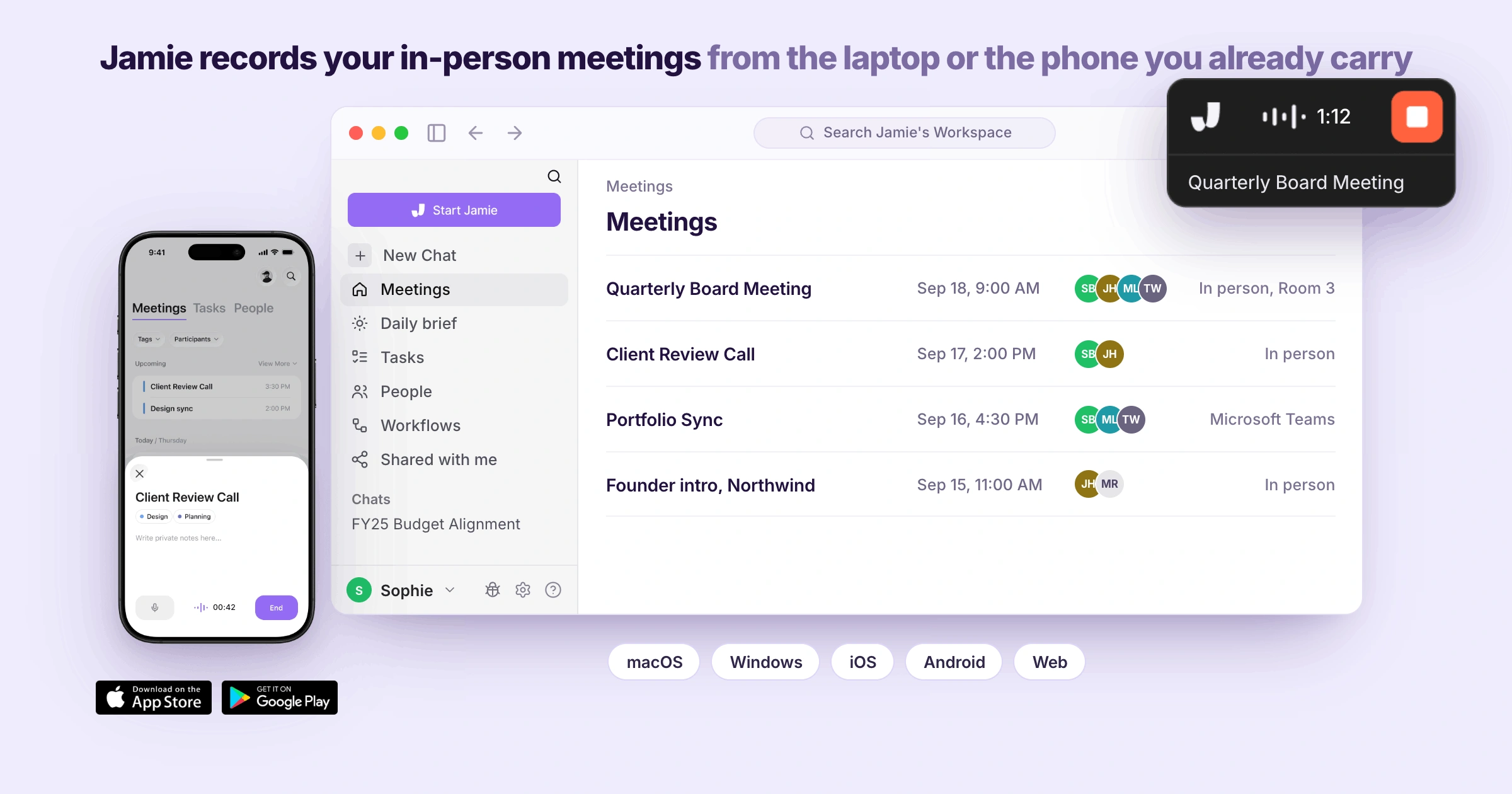
Jamie records in-person meetings on the device you are already carrying, the laptop or the phone. If you walk into a client's office with nothing but the laptop in your bag, you will want to know how Jamie records a room, what our mobile app captures, and whether the notes are waiting for you when you get back to your desk:
- In-person meetings
When you want to capture an in-person meeting, you open Jamie on the laptop you are already carrying, obtain verbal consent for recording in your own words, then start the recording. The room is captured by the laptop's internal microphone.
- Mobile app
If you need to use your phone while leaving the laptop closed, you can do so also. Jamie is available for download from the App Store on iOS, and from Google Play on Android. Jamie records the conversation that happens as you walk out of the building. However, Jamie will not capture phone calls.
- Sync across devices
All recordings stay synced across every device under the same account. Recordings made on mobile devices become immediately accessible on your desktop, and vice versa. Therefore, you may start a recording session on your phone but complete it at your desk without having to move anything.
Jamie Builds the Live Transcript While the Meeting Runs, Beside Your Own Scratchpad Notes
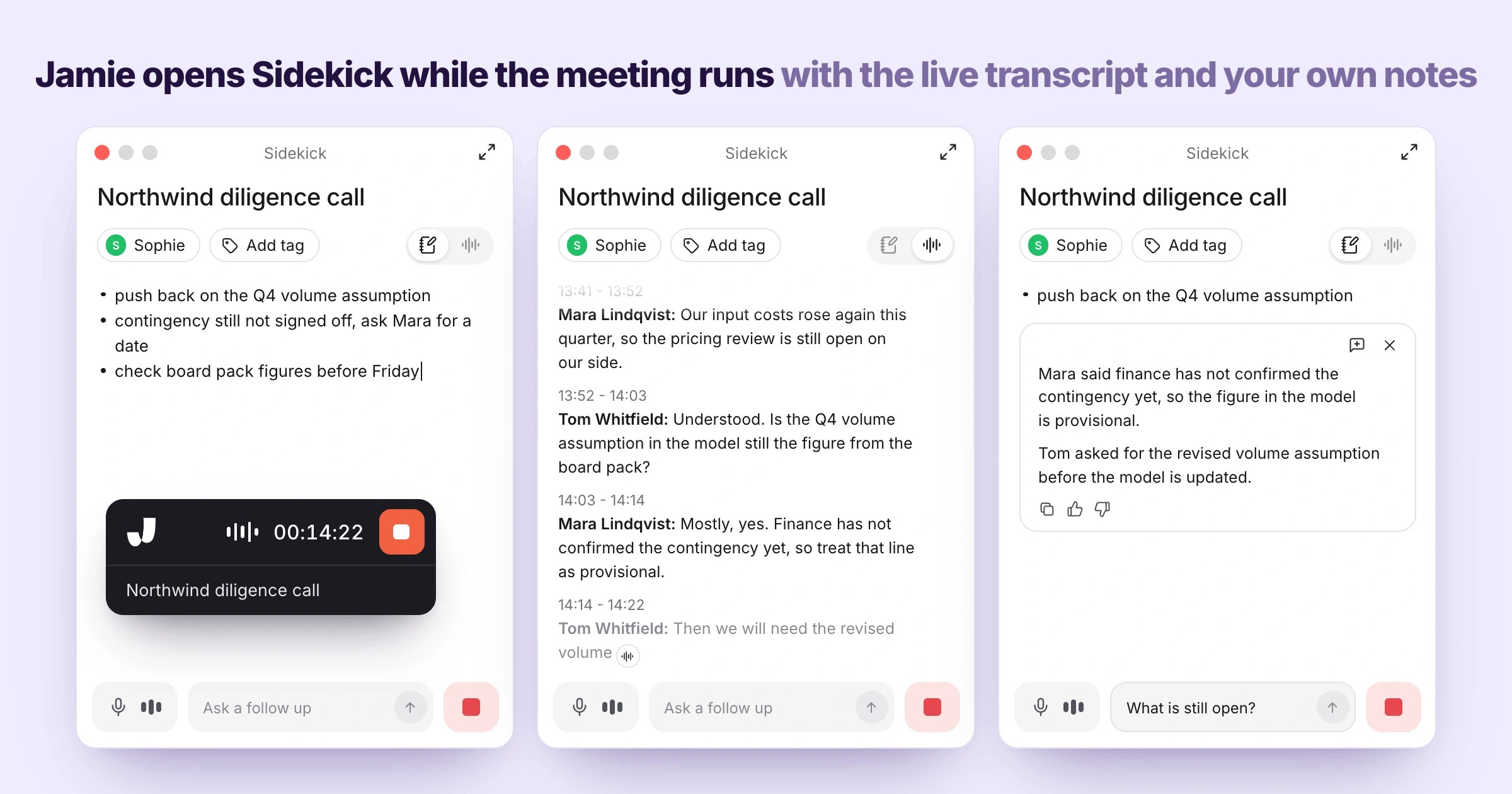
Jamie opens a floating panel called Sidekick alongside your meeting. Therefore, when the meeting is active, the live transcript of the conversation will appear next to your personal Scratchpad. We designed Sidekick so that the tools for controlling the recorder, viewing the transcript and writing down private notes from the conversation would be contained within the same area on one panel.
The lower portion of the panel contains an open space where you can ask Jamie a follow up question without leaving the call. While you are sitting in somebody else's meeting and cannot be seen typing into a second app, you will want to know what Sidekick puts on your screen, how the transcript keeps up, where your own notes go, and whether any of it gets in your way:
- Sidekick
You have one panel next to your call where you have both your own notes and the transcript together, which means when you read a word that was spoken moments earlier you are typing your own sentence about it in the same location.
- Live Transcript
In addition to being able to see the transcription develop in real time as participants speak, you are also able to read the transcript as it develops. Every participant who speaks during a call will have their name displayed in real time. This means you can refer back to something a person mentioned earlier in a meeting, without having to request that the person repeat the information.
- Scratchpad
You can also create your personal note-taking space by using the private Scratchpad. The Scratchpad, which opens as Notes inside Sidekick during the meeting, is an area where you can take notes that will be private to you, they are never folded into Jamie's summary of the meeting, and they are not included when you share the meeting with anybody else.
Jamie Identifies Each Speaker by Name and Asks Only When a Voice Is New
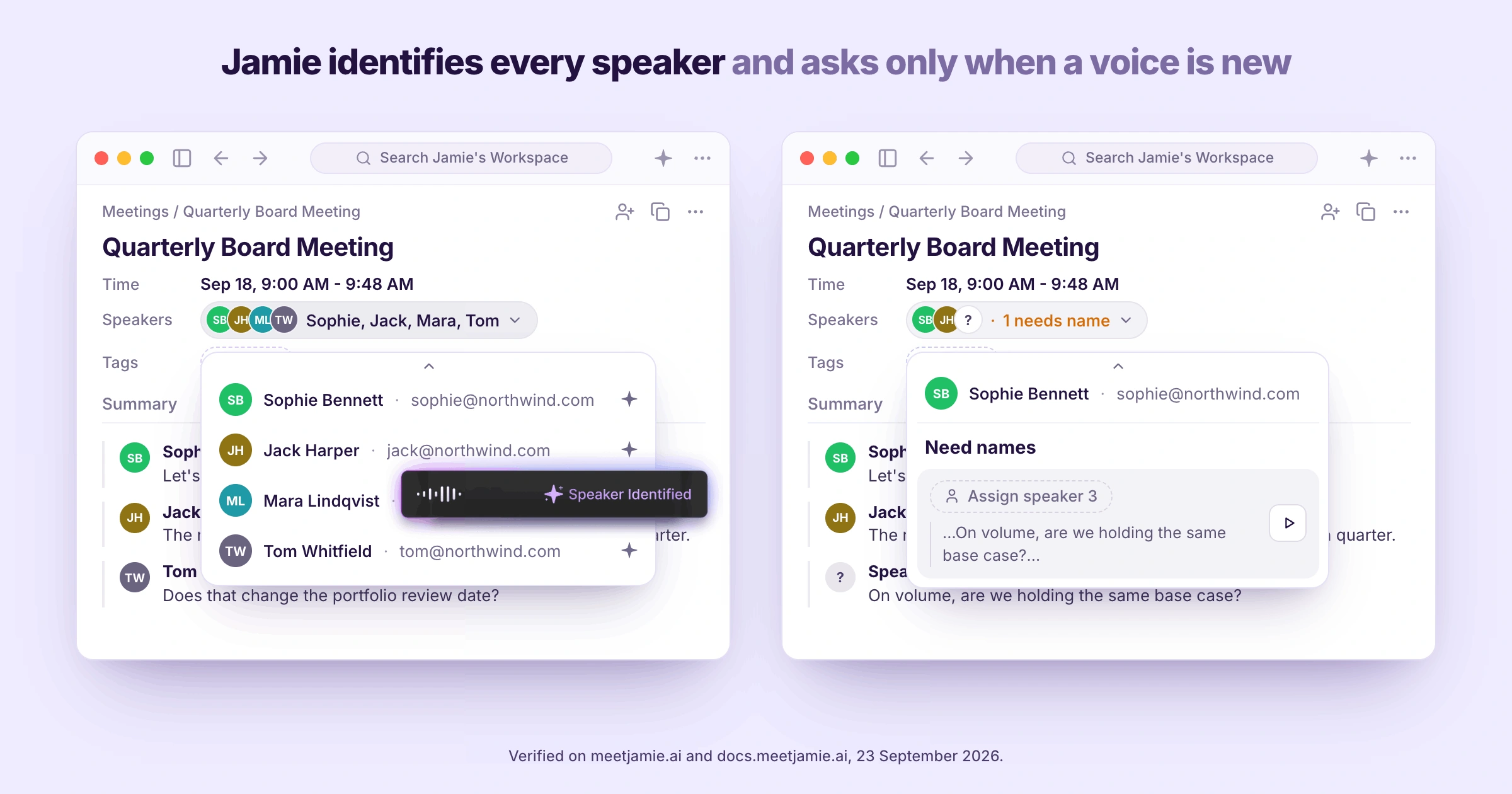
Jamie assigns names to speakers in the transcript. We developed speaker identification and memory jointly for one reason: we believe it is reasonable to have names assigned once for four individuals and naming the same four individuals every week is not. When four people talk across each other in a management presentation, you will want to know how Jamie tells them apart, and what happens the second time you meet the same person:
- Identify speakers
When a voice has not been identified before, Jamie will ask you only about that voice (and once), and you will assign a name to that voice once from the transcript.
- Speaker Memory
And Speaker Memory remembers that voice in your future meetings. Therefore, if you meet again with the same individual on another call, they will come back already named and you are not renaming anybody by hand, on every plan.
Jamie Generates the Executive Summary, the Full Summary and Every Action Item With an Owner
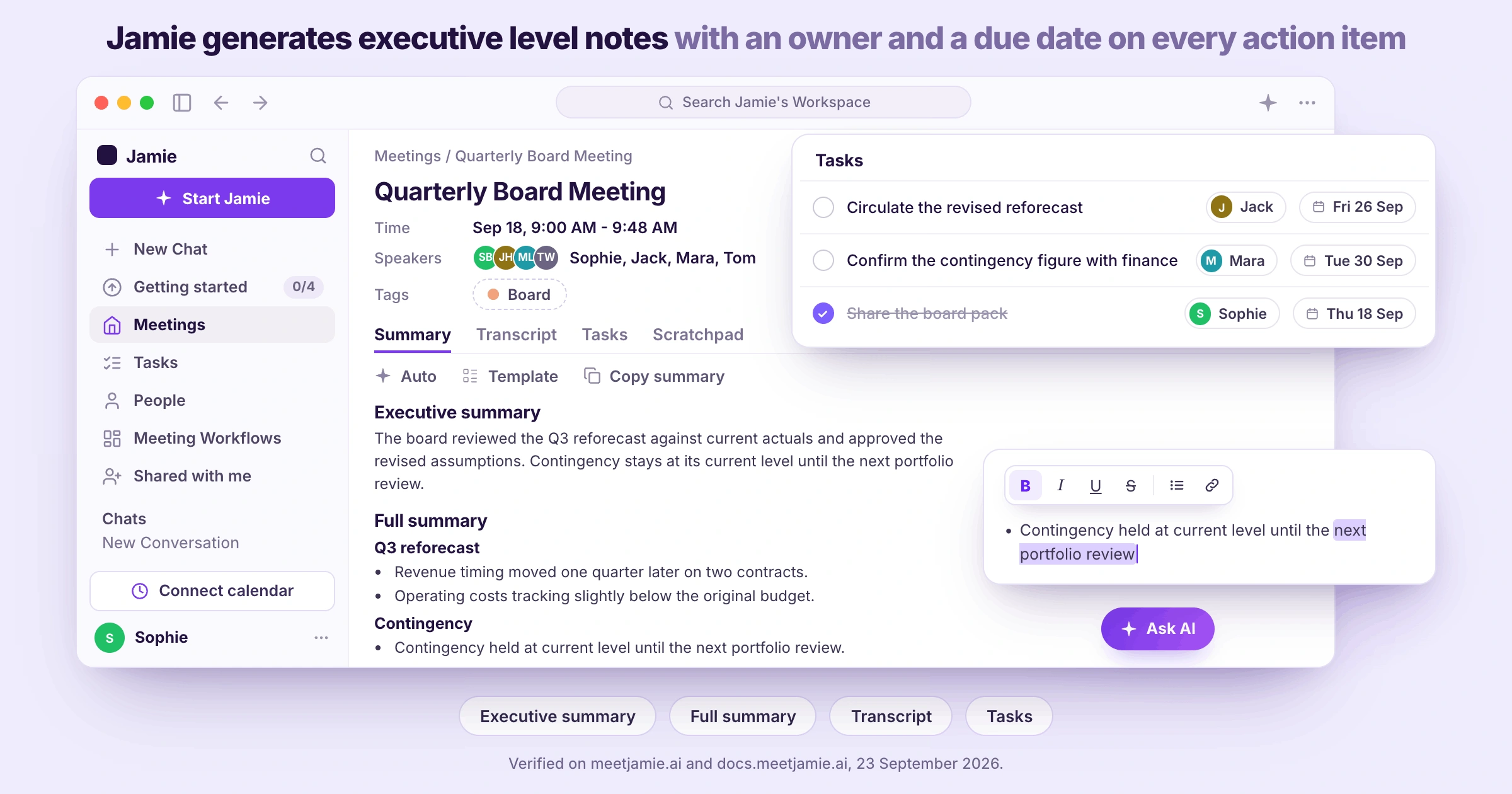
Jamie generates the meeting notes from the conversation, with the topics organized, the decisions identified and each action item assigned a specific owner. We developed Executive Level AI Notes for use as a document you could forward instead of just a long string of raw conversation, and the executive summary, the full summary, the transcript and the action items will be located in your Jamie workspace as soon as you stop the recording. Once the call ends and somebody who missed it asks what happened, you will want to know about Jamie's executive summary, what the full summary adds, what the transcript keeps, how we pull the action items out, and whether you can change any of it:
- Executive summary
You get the short version first, and it is written the way a person would write it, with the topics grouped, the decisions stated plainly and the quotes that actually mattered kept; which means you forward it to somebody who was never in the room and they follow it without asking you a single question, on every plan.
- Full summary by topic
And underneath that, you receive the longer version, which breaks down into the topics the meeting actually covered rather than into the order things happened, and the quote that settled each one sits directly below its corresponding heading.
- Transcript
You retain an exact word for word copy of your meeting minutes with your original notes alongside them. This record remains the same however many times you change the template on the summary.
- Tasks
The actions that were agreed upon in the meeting will be pulled out and displayed separately from the rest. Each action item includes the owner of the action item and a due date. You can also tick one off, edit the wording of the task, and add the one Jamie missed.
- Edit notes
And you can edit any of it yourself, because the notes are yours, which matters when a participant's name has been recorded as "John" but they spell their name "Jon", and nobody else has to be asked about the spelling to correct it.
Jamie Transcribes Your Meetings in 100+ Languages and Generates the Notes in the Language People Spoke
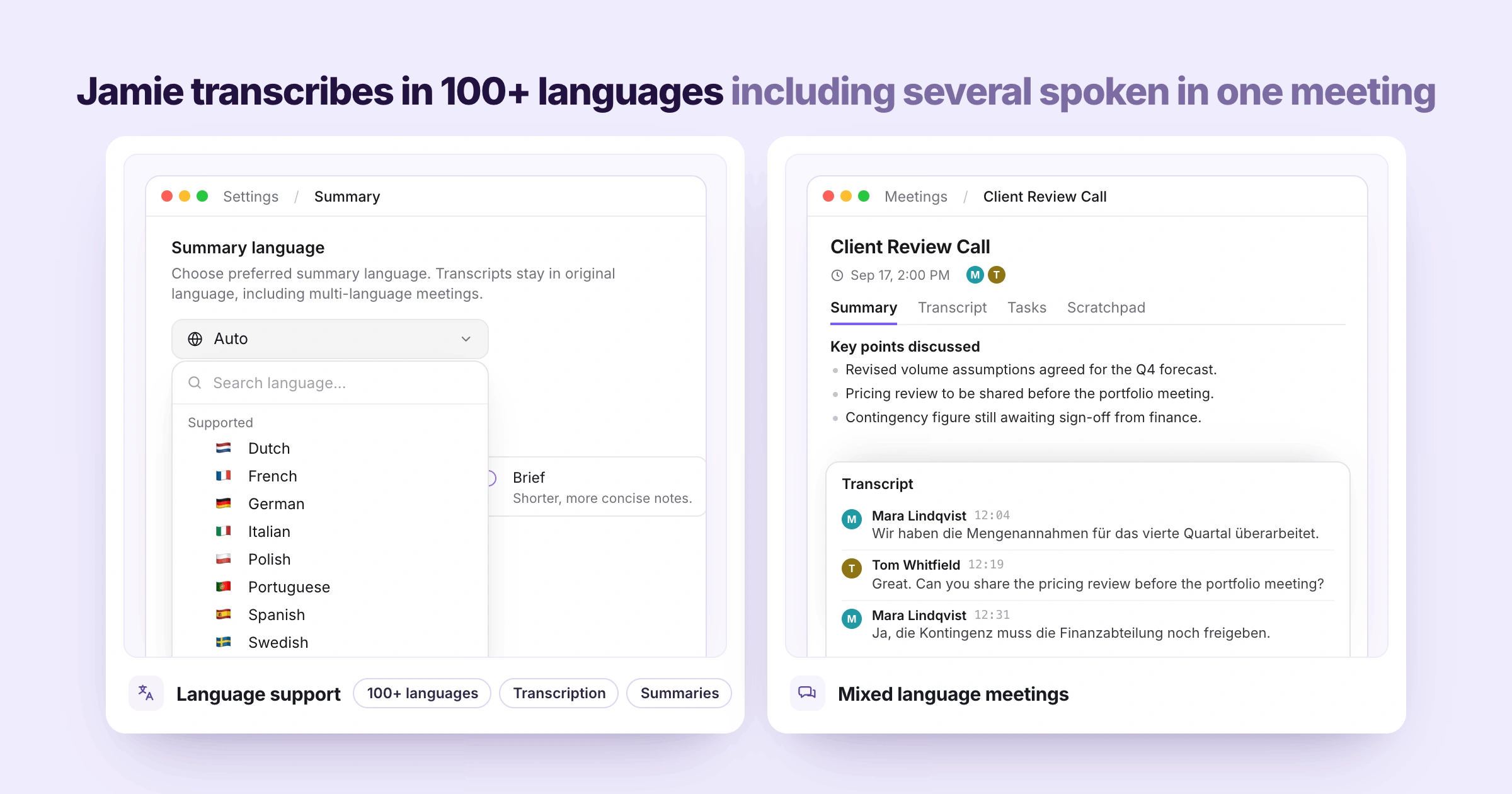
Jamie transcribes meetings in 100+ languages, German, French, Spanish, Italian, Dutch, Portuguese, Polish and Swedish among them. In addition to this, you can specify which summary language you prefer at any time by going into Settings, then selecting "Summary", and you will receive a summary generated from the actual conversation that took place as opposed to the language selected in advance.
Say your client opens the call in German and moves into English halfway through, you will want to know if Jamie has your language and how Jamie handles a meeting where two of them are spoken:
- Language support
You get transcription and summaries in 100+ languages, you select your preferred summary language once in Settings under Summary, and the original language is used for the transcript regardless of the language chosen.
- Mixed language meetings
And when your client opens in German and slips into English halfway through, you do not have to pick a primary language first; Jamie transcribes what was actually said in both, and the notes come back in the language people spoke rather than the one you guessed at in advance.
Jamie Shapes Every Summary With a Template and Applies the Right One After the Call
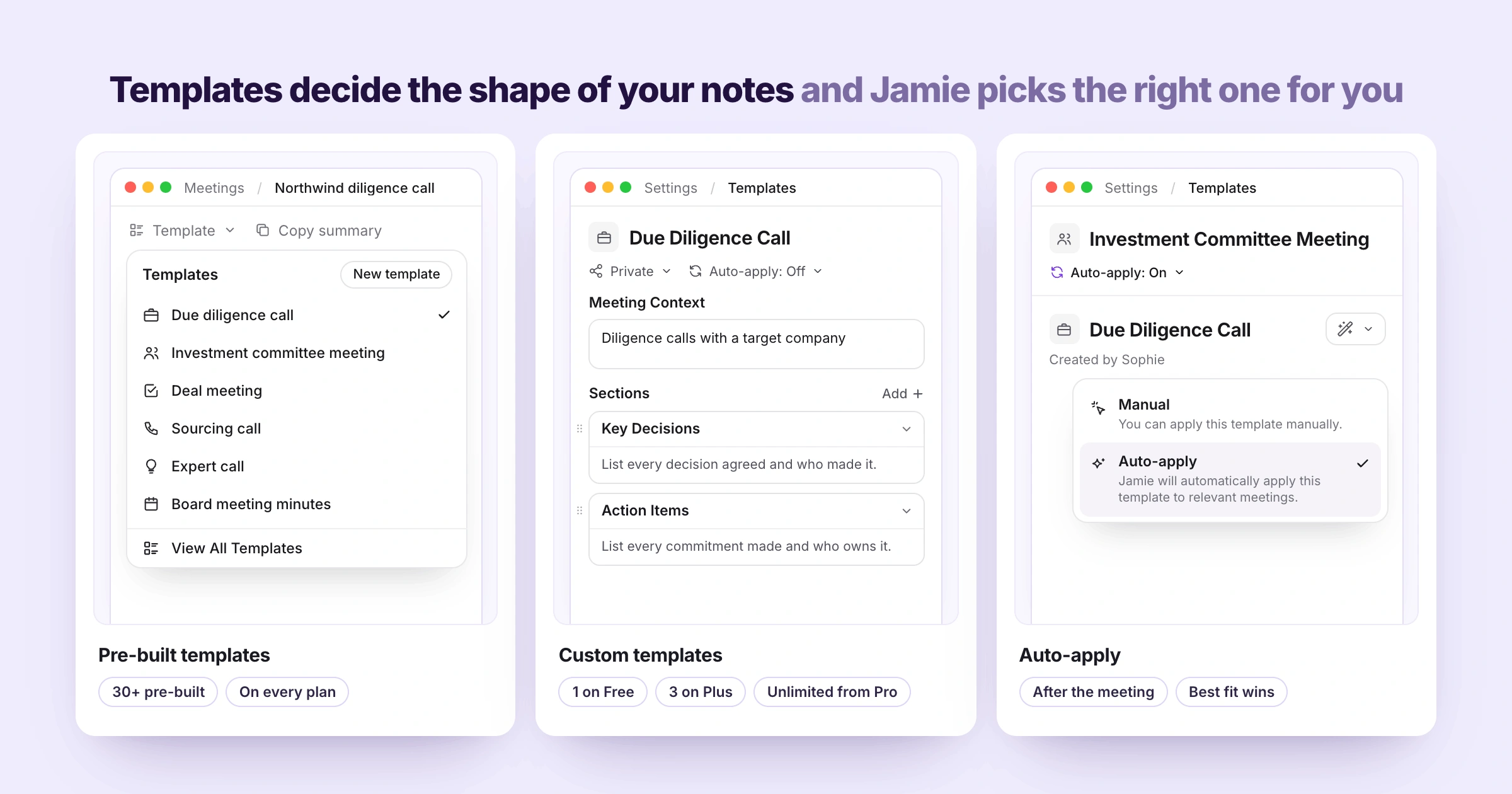
With Jamie you can choose the template of your choice from the dropdown menu below the summary. Jamie then regenerates the summary in the format you selected from the dropdown, but your transcript never changes. By the time your team has agreed how a certain meeting, lecture or a call should be written up, you will want to know if Jamie already has a template for your kind of meeting, lecture or a call, if you can build your own format or template, or if Jamie chooses one for you automatically:
- Pre-built templates
We have over thirty pre-formatted templates available on every plan, as well as those that are commonly used within a deal desk, such as a due diligence call, an investment committee meeting, a deal meeting, a sourcing call, an expert call, and board meeting minutes. And you select a template from the dropdown menu below the summary in a single click.
- Custom templates
Additionally, you may create custom templates from scratch or by duplicating one of our existing templates, name it, describe how you would like Jamie to use it in the Meeting Context field, and add sections as needed to include titles and your directions on what should be included in each section. The free plan includes one custom template, Plus includes three, unlimited templates are included with Pro, and shared workspace templates are included with Team and Enterprise.
- Auto-apply
Finally, you can also enable Auto-apply for the templates that you would like Jamie to consider. Then, after each meeting, Jamie will review which of the templates best fits what was actually discussed during the meeting and apply that one. If none of the templates match what was said during the meeting, Jamie falls back to the default format.
Jamie Answers Questions Across Every Meeting You Have Ever Recorded, Through Ask Jamie
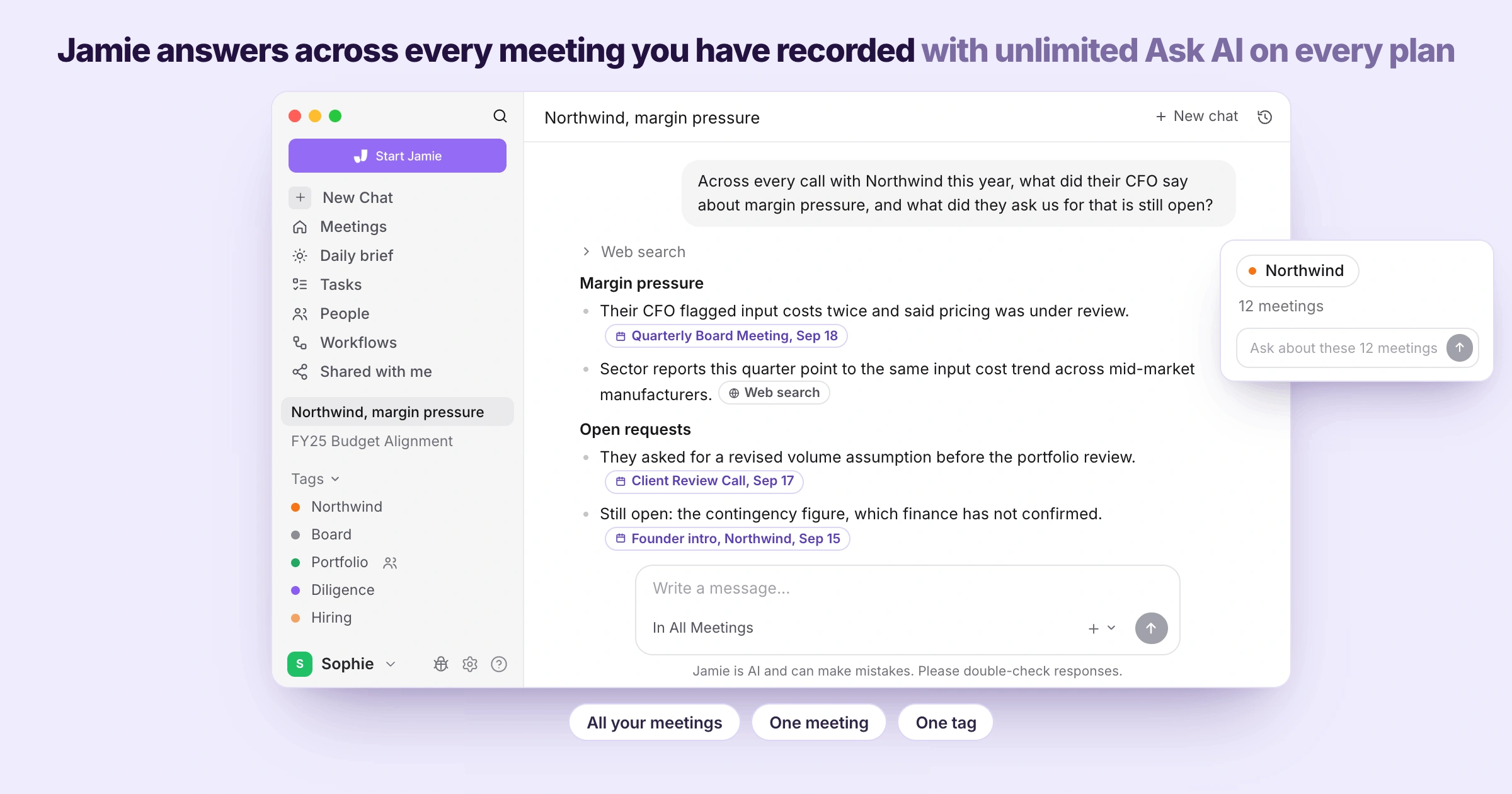
Jamie can respond to a question across all of your recorded meetings at once through Ask Jamie. We created Conversational Intelligence because the answer you are looking for is typically within a previous recording from three months ago and nobody has the time to read each page of a transcript to get the information needed, and Ask Jamie can search the web too when the answer to your question sits beyond your recordings. After a client asks you what you agreed in the spring, you will want to know what Ask Jamie can answer, how tags narrow it down, and how far back the search reaches:
- Ask Jamie
Type your question in a manner in which you would ask another person, for example, "Across every call with this client this year, what did the CFO say regarding margin pressure? And what did they request of us that remains open?" Ask Jamie answers based upon your recorded conversations and cite those meetings which were used to arrive at it. There is no limit to how many times you may use Ask Jamie on any plan offered, even the free plan.
- Tags
Tag a group of recorded meetings with the name of the deal or client associated with them. Then using this tag, you can direct Ask Jamie at that tag alone, thereby turning all meetings related to a specific deal, the sourcing call, the management presentation, the diligence calls and the investment committee, into a single body of knowledge which you can query.
- Search across your meetings
In addition, you can also search across all recorded meetings simultaneously, as opposed to searching one meeting at a time. With unlimited storage available on every plan offered, this means that the call from last February is still available to be found.
Jamie Is Agentic, Which Means Jamie Acts on What Was Said Inside the Tools You Connect
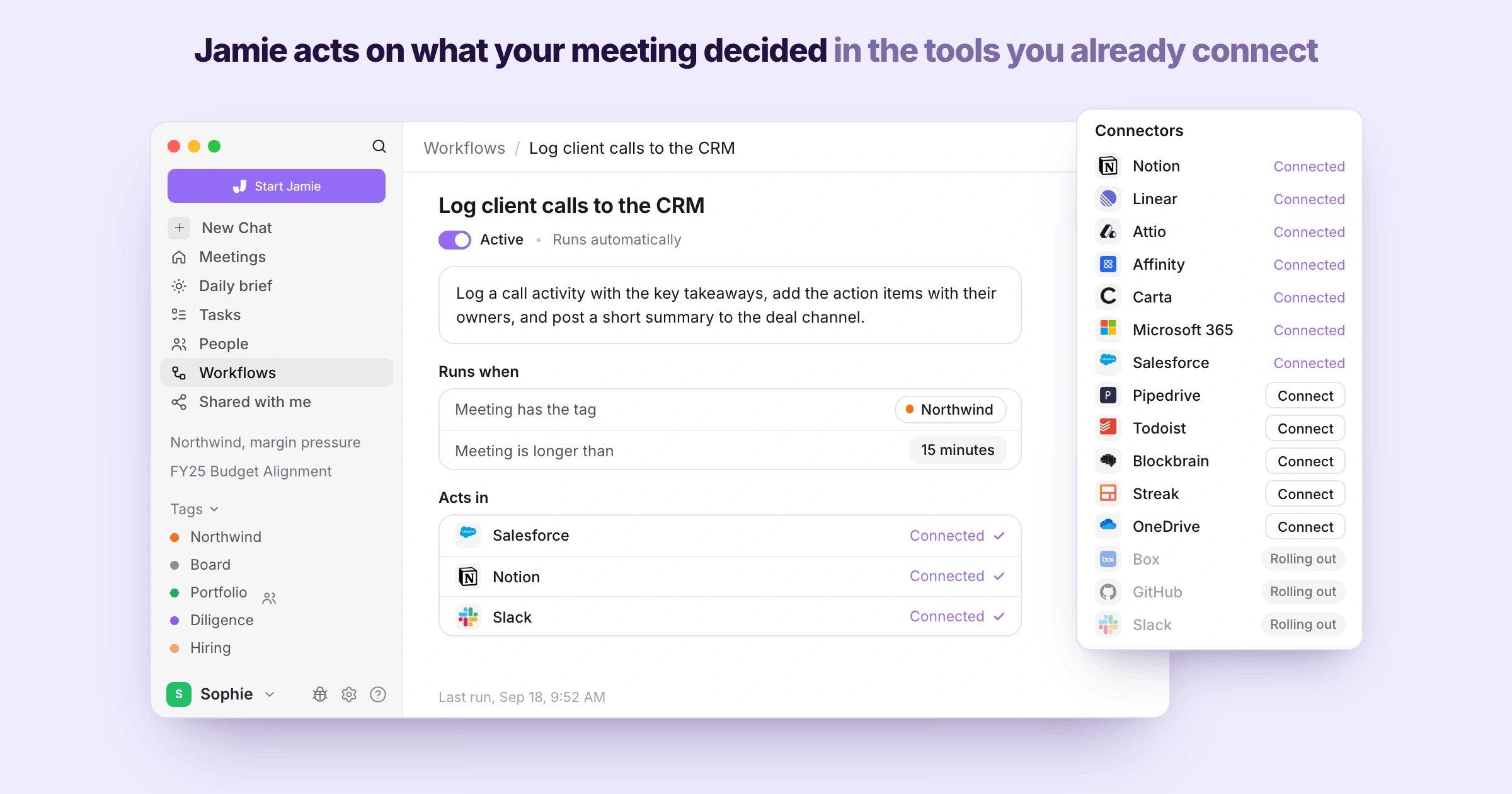
Jamie is agentic, which means Jamie will act on what your meeting decided instead of stopping at the notes. You create the instruction in your own words, and the Agent will carry it out in the tools you have connected to Jamie, doing there whatever that tool can already do.
Whenever the work after a call is the same work every time, you will want to know how you tell Jamie what to do, which tools Jamie can reach, and what the Agent actually does with the instruction:
- Agent Skills
You write the instruction one time, in plain language, telling Jamie exactly how to behave in the specific scenario you see occur frequently, and Jamie will perform this action repeatedly without needing you to explain it afresh each time the same situation occurs.
- Agent Connectors
You link the tools that you currently utilize with your own sign in, and Jamie never sees your password. This way, the connection between you and Jamie remains exclusively yours rather than being something that your IT team has to provision centrally.
- The Agent
And whenever you ask for one, the Agent works through the whole multi step job across those connected tools, showing you every step as it goes; which means the follow up from your last call is already done while you are still sitting in the next one.
Jamie Is GDPR Compliant and ISO 27001 Certified, and Jamie Is DORA-Ready for Financial Institutions
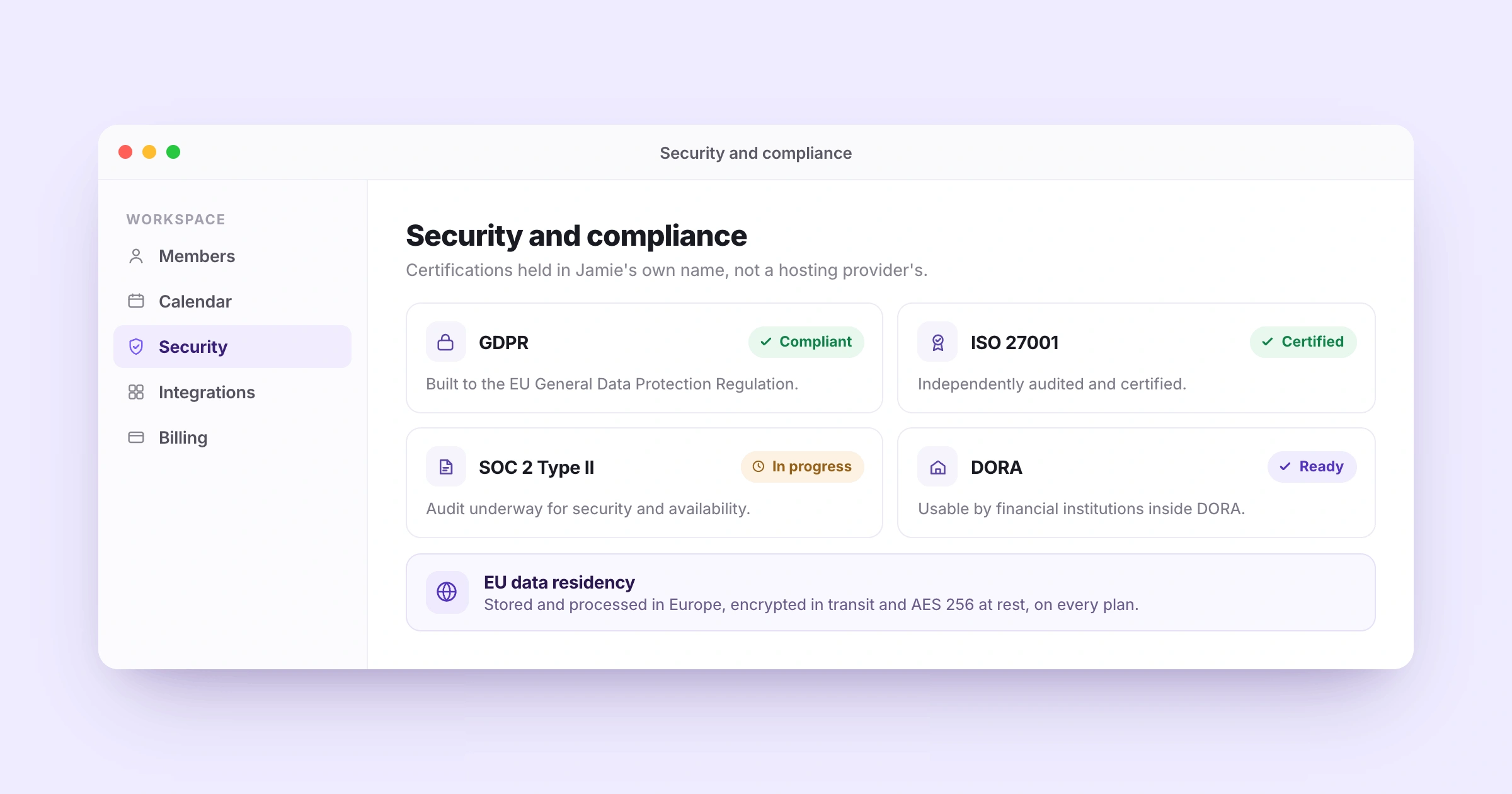
Jamie is GDPR compliant and ISO 27001 certified, and all meeting data is stored and processed in Europe. Jamie holds a separate and independent ISO 27001 certification as well as full GDPR compliance, with no dependency upon a hosting provider's own certificate.
The certification, the audit that is still running and the encryption are all published on our own security page, which means nobody has to request documentation from a vendor during the middle of a sign-off process. Now, if your legal or IT team has to approve a note taker before a diligence call, you will want to know which certifications Jamie holds, what is still in progress, whether a bank under DORA can use Jamie, and where the data sits:
- GDPR and ISO 27001
You receive a combined GDPR compliance and ISO 27001 certification, both independently audited and certified against the international standard for information security management, and instead of having your compliance officer wait for a vendor questionnaire you direct them to read it off our own security page.
- SOC 2 Type II
Additionally you may tell your compliance officer that Jamie is completing a SOC 2 Type II audit against the trust services criteria for security and availability. That is the honest status at present, because Jamie does not hold that certificate yet.
- DORA
And a bank, a fund or an insurer under the Digital Operational Resilience Act can make use of Jamie, because Jamie is DORA-ready. This is important to note because DORA places obligations on the financial institution, not on their vendors.
- EU data residency
All meeting data that is collected is stored and processed within Europe, with connections over HTTPS and TLS 1.2, and all content at rest encrypted using AES 256. On the Enterprise plan you set your own retention rules for how long meeting data is kept and when it is deleted.
Jamie Deletes the Meeting Audio Once the Transcript Exists and Trains No Model On It
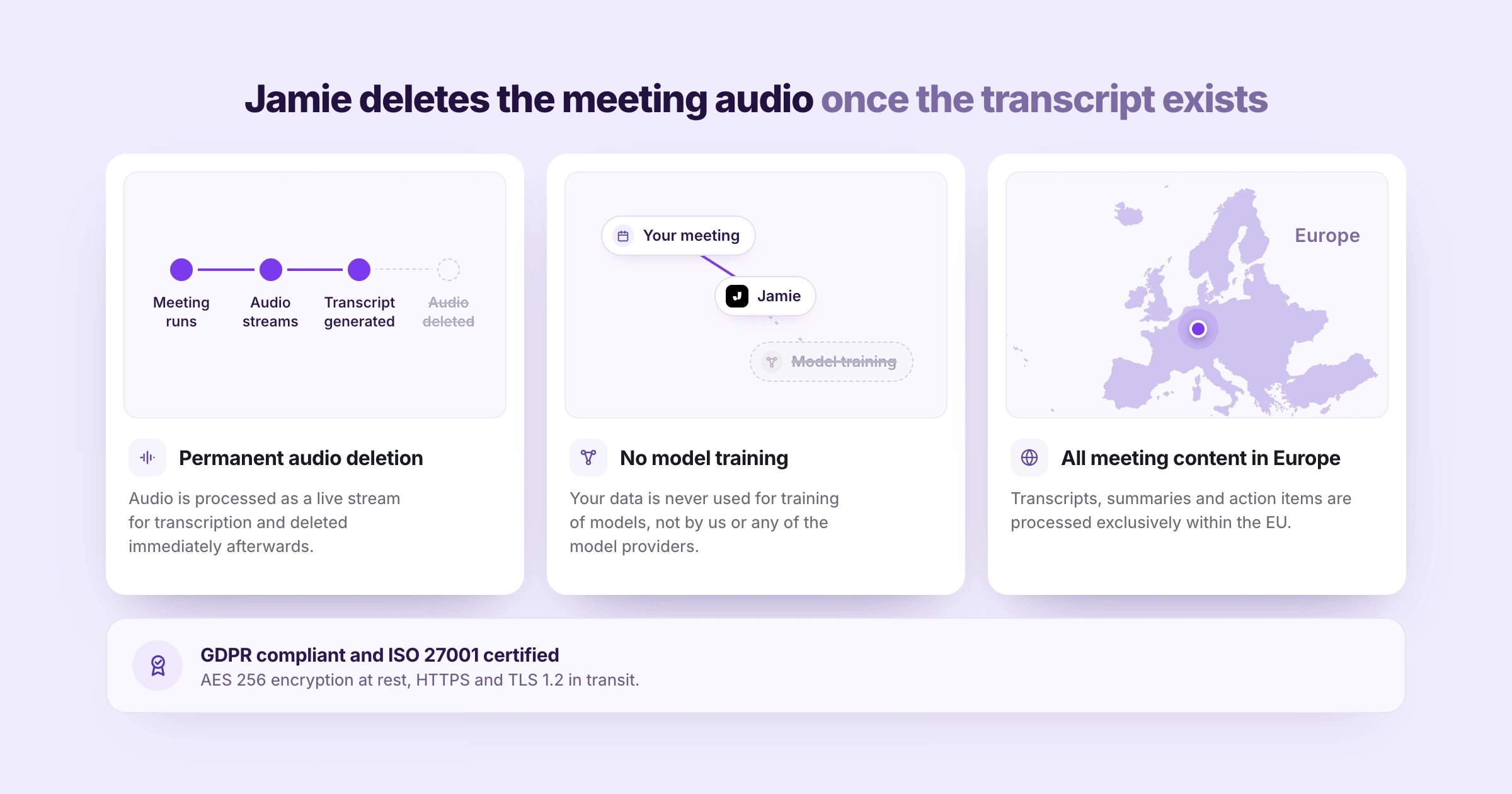
Jamie deletes the meeting audio once Jamie generates the transcript. We chose this because a recording of an unstructured conversation is a liability that grows the longer it sits somewhere, and we would rather keep what was said in the form of the transcript than the recording.
And if your client calls are covered by a confidentiality agreement, you will want to know what happens to the audio afterwards, whether we train our models with your data, and where your meeting content is processed:
- Permanent audio deletion
Your meeting audio runs through as a live stream and it is gone the moment the transcription finishes; which means the recording of a client conversation does not outlive the deal it belonged to, and nothing is still sitting somewhere a year after that deal closed, on every plan.
- No model training
Your meeting data is never used for training any models, not by us and not by any of the model providers, on every plan including the free plan.
- All meeting content in Europe
And your transcripts, summaries and action items are all processed within the European Union, which is the answer your compliance officer is really asking for when they ask where the meeting data goes.
Jamie Discloses the Recording Three Ways: Verbal Consent, an Email Notice and a Chat Notice
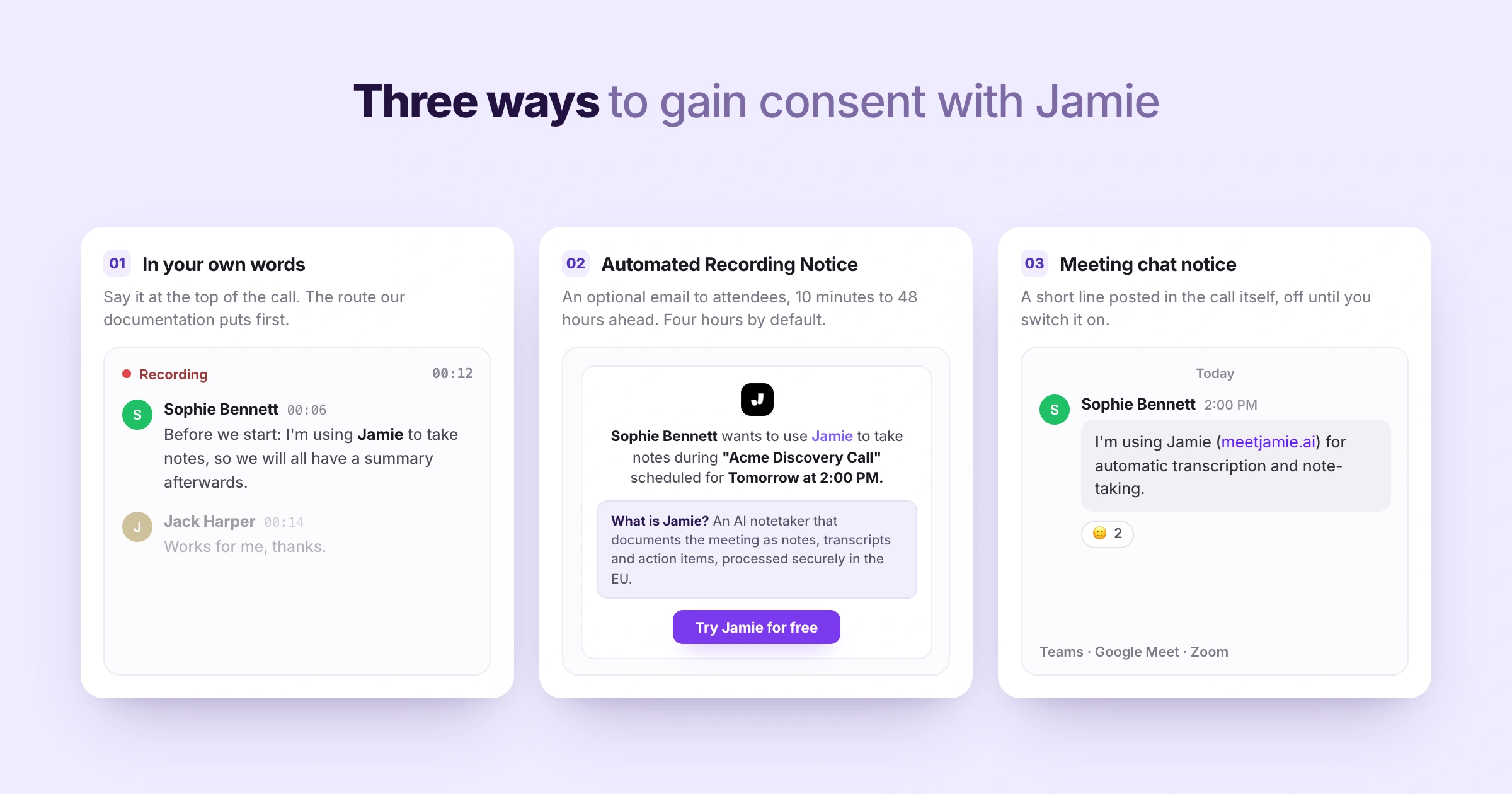
Jamie has three options for how you can notify the attendees in your meetings that notes are being taken. Because no bots joins the call as participants, the obligation is on you to disclose this to the attendees, and we have made each of these three paths available so you can choose the path your clients will not mind.
The moment you are a guest in somebody else's meeting, you will want to know about verbal consent, what the optional email notice does and when it goes out, and what Jamie can post inside the call:
- Recording consent
You are able to obtain the attendee's verbal consent directly at the start of the call, in your own words, and this is the method used by the majority of our clients. In addition, our own documentation clearly states that informing participants remains your responsibility as the data controller.
- Automated Recording Notice
You can also enable the optional Automated Recording Notice email so attendees are notified prior to the start of the meeting, within a time frame of ten minutes up to forty eight hours before the meeting starts, with the default notification time set for four hours, and this feature requires you to connect your calendar. People working in your own workspace are left off it. Nothing will be sent until you turn the toggle on in Settings under Notifications.
- Meeting chat notice
And Jamie can post a short notice in the meeting chat a few seconds after the recording starts, in Microsoft Teams, Google Meet and Zoom, once you switch it on per device in the desktop app; it is in closed beta today and off by default, and on macOS you grant Accessibility access before anything is posted at all.
Jamie Logs the Meeting Notes Into Your CRM and Sends Them to the Tools Your Team Already Opens
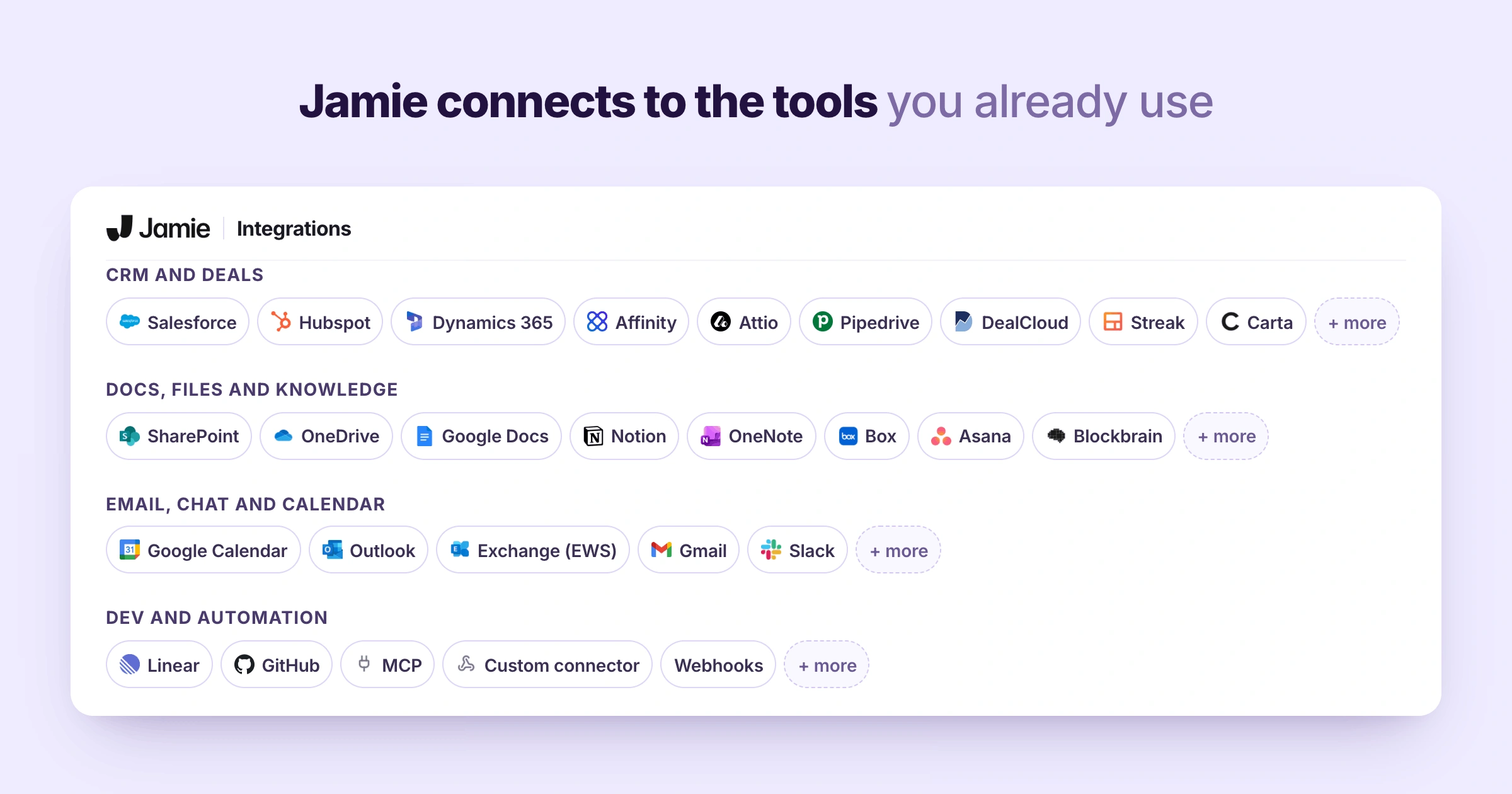
Jamie sends your meeting notes into the tools that your team already works in. The integration happens just one time in Settings and then your meeting notes arrive there after every meeting with nobody needing to do anything.
And where you would rather pull the data out yourself, you can now download every completed meeting you own as one CSV file, which is behind a feature flag today, so it may not be switched on in your workspace yet.
For a deal desk that lives in its CRM, you will want to know which CRMs Jamie logs into, where else the notes can land, how your own AI tools reach Jamie, and what you can build on top:
- CRM logging
Once you connect your CRM in Settings, Jamie then logs the meeting notes to it after every meeting, into HubSpot, Salesforce, Attio, Pipedrive, Microsoft Dynamics 365, DealCloud and Affinity, which is the deal software a private equity or M&A desk actually runs, from Pro upwards.
- Docs and knowledge tools
And you can have the notes sent into Notion, Google Docs or OneNote instead, or as well, which is sharing through an account you connected once rather than a file you have to move anywhere; all three are on every paid plan from Plus.
- MCP
With the help of MCP, you can have that same Jamie meeting data reach whatever AI tool you are already using, Claude, ChatGPT or Cursor, which means the tool reads what was said in the meeting rather than you pasting the minutes in by hand, available from Pro onwards.
- Webhooks and the API
Additionally, if there is not a pre-built connection to send your meeting notes to the tool you want yet, teams can also build their own route out using our webhooks and our API, available from Pro onwards.
How much does Jamie cost?
Jamie has 5 plans. The free plan includes all core features like meeting notes, transcripts, action items, speaker identification, and 100+ language support. Paid plans add more meetings and longer recording times. Prices are monthly and shown in euros, as of July 2026.
- Free (€0/month), 10 meetings per month, 30-minute limit
- Plus (€25/month), 20 meetings per month, 2-hour limit
- Pro (€47/month), Unlimited meetings, 3-hour limit
- Team (€39/month per seat), Unlimited meetings, 3-hour limit, centralised billing
- Enterprise (Custom pricing),Custom solutions, contact for details
💜 Gentle Reminder: Pricing may change. Please double-check on Jamie's official pricing page.
Things I love
There were numerous aspects of this platform that are extremely easy and user-friendly. Therefore, I had no problem at all when having to take part in very large meetings.
An extremely easy recording experience that does not involve any unwanted bot interruptions.
- It works everywhere using your laptop's internal microphone for every meeting.
- Because of this, I could have complete confidentiality while participating in these calls without there being an unwanted bot taking place.
Flawless speaker identification that automatically identifies speakers without manually doing so.
- I did not need to move one finger in order to determine who said what in the testing.
- It automatically identifies each of the participants as well as executives involved in the meeting, and remembers them for future meetings, therefore eliminating the need to assign labels again.
Smart tag suggestions that organise your confidential documents automatically.
- Once you create your own category settings, the system will read the content of the meeting and apply the appropriate tags automatically.
- Eliminating a great deal of manual work in organising documents, you now have a searchable organised database immediately available.
A feature that automatically applies templates based on context for your notes.
- With just a toggle switch, you can enable the system to read what your call was about and format your summary using the template design you prefer.
- This is a huge time-saver since you don't need to find and manually apply templates after a busy day of consecutive calls.
A professional consent notice that provides transparency regarding privacy before your meetings even begin.
- Before your meetings begin, Jamie sends your participants the optional Automated Recording Notice email, 4 hours ahead by default and settable from 10 minutes to 48 hours, explaining exactly how their privacy will be secured.
- You can also exclude certain email domains so you're not sending a consent notice to your same daily colleagues.
Free and unlimited chat assistant to query all of your meeting history.
- You can search through all of your records or focus down to a single meeting to inquire with no restrictions.
- It functions as a smart assistant that has knowledge of every single piece of information that's been discussed and provides you with an answer immediately.
Highly structured tasks that automatically map out action items and assign them to the correct person.
- The system extracts your next steps from the transcript, assigns them to the relevant participant, and allows you to manage priority levels with ease.
- It eliminates the manual guesswork associated with post-meeting follow-ups.
Sanduni: "The transcription though. Everything is amazingly captured. I didn't even have to lift a finger to identify the speakers."
What bugged me
I was very impressed with how accurately all the transcripts had been transcribed; however, I found myself somewhat unenthusiastic regarding the way the final summaries were organised.
Overall, the final meeting summaries appear as a wall of text that is difficult to sift through.
- Don't get me wrong, I did pick the extensive summary option, so I am getting what I genuinely asked for, but there are fewer chapters or topics than I'd like it to have. I wish there were more organisation based on clear story chapters or breaks, so the summary doesn't feel too long and dull when trying to read through it. Though you don't have to anyway, you can just use Ask Jamie to find what you need to know, or you can use Jamie's templates to get the best summary according to your exact needs. HOWEVER, this is just my opinion!
- With Jamie, there's always a way to personalize the summaries according to your preferred taste!
Sanduni: "It kinda gets very, very... I don't know if it's because I selected the extended summary but it does get extremely lengthy."
What Jamie users compliment about
Bot-free capture, no awkward bot on the call
"I like Jamie because it's a bot-free AI note-taker that can take notes without an awkward bot on the call." G2
Accurate transcription and well-organized AI summaries
"The transcription is also usually very accurate. I also like the AI summaries it generates after the call - they're well laid out and organized, especially compared to other AI note-takers." G2
A lifesaver for multilingual meetings, even Hebrew, online or in person
"Finally an app that… Understands Hebrew. Jaime is also a life saver for: Multi lingual conversations [and] Offline and online meetings." G2
What Jamie users complain about
Audio capture needed a little mic setup early on (since fixed)
"I had an issue before with recording the meeting notes because my microphone or something was not set up properly. But the latest update now grabs the meeting sounds with no extra configuration." G2
Speaker identification isn't infallible, a good mic gets the best results
"The speaker identification feature of Jamie, though very useful, isn't entirely reliable or infallible. In our experience, to get the most effective results from Jamie, it was necessary to invest in a good quality microphone." G2
A few rough edges and missing integrations, it's still young
"There a few buggy things and missing integrations but Jaime is young and I have full confidence in what their future looks like. It's better than every other app I've tried." G2
Want to try Jamie?
Start free with 10 meetings a month, no bot and no card, and feel what it's like to just talk while Jamie takes the notes.
2. Granola review: minimalist + bot-free, best for solo and personal notes
Verdict
Overall, Granola is an excellent choice for users seeking a clean, extremely minimalistic environment in which they can record ideas and create beautifully formatted meeting reports. I have found working with this tool to be very enjoyable; the overall design is exceptionally calm and having unlimited meeting notes on the Free version is an awesome benefit for daily, casual conversation purposes.
However, as you enter into serious, high-stakes business meetings with many speakers and large amounts of information being discussed and shared among team members, the shortcomings of this tool become apparent.
In these situations, Granola will fail to meet your expectations in terms of identifying who has spoken at different points throughout the meeting, maintaining separation between internal/private notes and client-facing meeting notes, and providing long-term storage/searchability for meeting minutes.
- Who it's for: Solopreneurs or teams desiring a distraction-free notebook that creates polished summaries from unpolished hand-written notes, used primarily for low-stakes, everyday conversations.
- Who should think twice: Business professionals conducting important meetings with multiple participants requiring complete accuracy and accountability regarding who made specific comments/observations during the meeting and who had access to confidential/proprietary information contained within the meeting notes.
- The take: If you require a simple, elegant way to turn your own disorganised/unformatted meeting notes into organised/polished formats for everyday use, consider using Granola. However, if you are running meetings where precise identification of individual contributors/speakers and/or segregation of internal/private notes from public/client-facing meeting notes is paramount, I'd prefer looking for an alternative.
What is Granola?
Granola is a bot-free AI notepad you download on your desktop to capture your meetings and turn them into notes. You take rough notes during the call, and once Granola recognises the call has ended, it automatically generates enhanced notes by pairing your typed notes with the transcript it created during the call, producing structured summaries with action items and decisions.
A fan-favourite feature is Granola's AI Chat, where you can ask questions across all your past meetings, as noted by a user below:
"I LOVE Granola! Being able to sort through meeting history and chat with your notes to access everything that has been said about a particular topic is AMAZING." Product Hunt
The catch is who said what. Granola names speakers from your meeting platform, so on Google Meet through the browser extension, and on Zoom on macOS through Settings, the transcript carries real participant names. Granola's own feature-requests page confirms it shipped, stating directly:
"This was one of our most-requested features, and it's now here."
Everywhere else, including an off-calendar note, the transcript falls back to Me and Them, and the iPhone app labels people Speaker A and Speaker B with no names. Granola also doesn't match a voice to a person across calls. Names come from the meeting platform each time rather than from a stored voice.
Users who actually live through larger meetings feel this, as noted below:
"Speaker identification can also be hit-or-miss, which makes it harder to track who said what in larger meetings." G2
Other than that, the setup is fast, the bot-free capture is genuinely seamless, and once you're in, the workflow can be quite nice. Here's how it held up when I tested it.
Features I tried
Quick Notes
This is a feature you use when you want to start taking notes on an impromptu meeting that isn't set to be on your calendar. I checked this out using a YouTube video of a couple talking. Once you're done recording, Quick Notes creates a summary, and the transcript sits under the note behind the waveform button next to the chat bar, labelled Show transcript. The drawback is speaker identification: Granola's own Quick Note screen says it will transcribe but will not know who is speaking, so every line came back under one label.
With no way to tell who is saying what, you are left with a large chunk of text that you will need to spend time figuring out who said what, which is extremely tedious and takes away from being able to pay attention to the content of the conversation.
Recipes
Recipes are essentially pre-made prompts designed to enable creating quick content, or quickly getting insight from the meetings. Many users utilise a common prompt named "What Did I Miss," if they doze off to catch up on what they missed during a meeting.
As well, Recipes utilises a marketplace (that appears attractive) allowing you to pick through numerous options such as "Make Me Sound Smart," "Suggest Questions," etc., and even allow you to create your own.
When I ran a funny recipe against my test meeting, it created something totally nonsensical, however I tried a second one created by Ruben Hassid that produced a LinkedIn post brief, and that one worked pretty awesome.
Creating content outside of your meeting notes utilising recipes is an excellent method; you simply need to be aware of which ones you decide to run.
Notepad
This is a built in scratch pad where you may jot down ideas whilst the tool transcribes in the background. This operates similar to a typical Markdown text editor, therefore you can write a # sign to produce headers and organise your ideas under various subjects.
The thought behind Notepad is that you write small, hasty notes during the meeting, and then click on the "Enhance Notes" button to combine the manual jottings you made with the background transcript to produce one nice and complete document.
Although having space to take notes is good, I have mixed emotions regarding the delivery of this feature.
If you write private thoughts, internal strategies, or sensitive client data on your pad, they will be incorporated and blended directly into the finished polished meeting summaries that you will eventually send to clients, which is unprofessional if you ever plan on sharing the client-facing summaries later.
Templates
These are pre-defined formats that you may apply to your meeting notes after the recording stops to format them in a particular manner. I observed several defaults shown on screen (such as an interviewing template and a user interview layout that separates notes into structured categories like objectives, issues and present answers).
Templates appear useful if you require maintaining consistency in your documentation amongst all of your interviews with candidates or customer calls so that you may easily compare later; nevertheless, the negative aspect of Templates is that the actions generated by Templates are elementary.
You receive a listing of things to accomplish next, but none of the listings contain priority levels, deadlines or ways to delegate them to other individuals, requiring you to handle all of the follow-up tasks yourself.
AI Chat
The chat interface lets users ask questions about the history of meetings. The chat interface is another method by which the user can interact with the meeting transcript and get the information they need from the transcript once the call is over.
Integrations
Share your completed meeting notes with the apps you already use in your day-to-day business. While the native integration possibilities are limited on the basic free version of Granola, there's a direct connection to Slack, plus the Granola MCP connector, which every plan gets and which plugs your notes into Claude, ChatGPT and Cursor. Otherwise it includes some rudimentary methods of sharing such as an email option; copy/paste into your clipboard; copy/paste URL To integrate Granola with other applications, you will have to go through Zapier, and that may require you to have a certain level of technical sophistication to create the zap.
Advanced AI Models
In addition to the standard 'Auto', Granola gives you a choice among the premium models. There's Sonnet 4.6, GPT-5.4, and GPT-5.5, and then there are the Opus 4.8, Fable 5, and Gemini 3.1 Pro models, along with their thinking versions. These are available when you pay for a plan and therefore I chose to remain on the free Auto plan and did not test these.
How much does Granola cost?
- Basic: $0 free per user per month
- Business: $14 per user per month
- Enterprise: $35 per user per month
Gentle reminder: pricing may change, please double-check on Granola's official pricing page.
What I loved
Overall, Granola works very well at creating an experience around the feeling of using the product and helping users create content from meetings.
A peaceful, expansive workspace that is aesthetically pleasing and minimal.
- The aesthetic is quite pleasant to look at; there's plenty of clean whitespace and colours aren't overly taxing on the eye.
- Using it is also enjoyable when I'm looking for something clean and free from distractions, with not a lot of clutter going on.
Creative Recipes for transforming meetings into content.
- Those creative Recipes are a great addition, especially since others are able to share their own templates to take those raw transcripts and turn them into other formats (like structured LinkedIn briefs).
- The fact that the AI chat can be accessed unlimited times through the free version allows for easy discovery of your conversations and obtaining the exact desired output.
Meeting recording without a bot is definitely a benefit to the user experience.
- No visible bot joins the meeting, therefore there is less likelihood of having that "creepy" feeling associated with a bot joining the call.
- The green dancing bars provide confidence that the audio is capturing correctly without being intrusive.
Sanduni: "It feels really nice. It feels really good. Um, and the calming colors, colors are really calming. Uh, minimalistic, so much white spaces and not, not too much going on..."
What bugged me
Although Granola does have a visually appealing design, there are many limitations within Granola that made me believe that Granola may not be ready for business use or professional meetings.
Lack of speaker identity (for in-person meetings) creates a mess of trying to determine who said what after the meeting is over.
- In my testing of the Quick Notes feature with a YouTube video of 2 different speakers, it did not indicate which one spoke.
- In this Quick Note capture the transcript carried no voice labels, so I had to work out which speaker said each line myself.
- For those needing a clear and accurate copy of a meeting, this lack of detail is extremely disappointing.
I don't think merging your private notepad into your final summary is safe.
- How your private notebook is "enhanced" and then combined into the final summary produces serious concerns about privacy.
- Your personal notes, potential lead info, names, etc., that you've written in your scratchpad could now appear in the section intended for your client.
- That separation between your private thinking and the shared record of your meeting seems unprofessional for meetings where there are high stakes involved.
Some community-submitted prompts produced nonsensical results during my testing.
- The joke recipe, for instance, didn't apply or make sense during my meeting.
- I couldn't even identify how the anecdote applied to our discussion.
Next steps were extremely basic for serious work in my testing.
- In my test the next steps came back with no priority levels and no due dates, though Granola does document extracting owners and due dates from the transcript.
- Granola lets you reassign the owner on a generated action item, but I couldn't find a priority field or a way to mark one complete.
The free plan has a short memory
- The free Basic plan only shows the last 30 days of meeting history in the app. Older notes are kept rather than deleted, and they come back if you upgrade, but they are out of reach while you stay on free.
Sanduni: "Granola will transcribe the quick note, but you will not know who is speaking."
What Granola users compliment about
Bot-free presence keeps the conversation human
"background without joining as a bot or recording audio means I can actually be present in conversations. No awkward 'there's a bot in this call' energy." G2
Summaries that surface decisions and action items, not raw dumps
"The summaries it produces are actually good, not just a raw transcript dump, but key insights and actions." G2
Cross-device capture between Mac and iPhone for catch-ups on the go
"It transcribes both on my Mac and iPhone, which is a game-changer for on-the-go catch-ups." G2
What Granola users complain about
Speakers blur together, and the transcript misses words
"the transcript isn't completely accurate. It also doesn't always distinguish between different voices, so it can be unclear who is speaking." G2
Details slip through, and this user wanted the whole transcript surfaced
"It does not capture all meeting details. It would be nice if it can provide an entire transcript of our meetings so you would know in case it misses something, especially if the meeting is quite lengthy." G2
No native Slack or email send, copy-paste to share summaries
"I'd like to have little buttons in Granola for automated actions, like a Slack button to generate a message or an email button for a formatted email. It'd be nice to connect directly to Slack for sending meeting summaries." G2
Leaning toward Granola?
See how Granola and Jamie stack up side by side in our Jamie vs Granola breakdown.
3. Fathom review: fast and hands-on, but busy, best for online-only video teams
Verdict
If you work all day with Zoom, Google Meet, or Teams as your primary video call platforms and would like an AI note-taker that feels completely native to your desktop experience, then Fathom can be a good option.
If you also enjoy being hands-on in meetings, clicking a button to highlight important parts of the call or sending feedback in real time to Slack, then this is another good fit.
However, if you hold in-person meetings or you would simply rather stay engaged in the conversation without monitoring a sidebar of bright highlight buttons, Fathom will fall short.
I personally didn't love the heavy emphasis on sharing, and the points-and-raffle system to encourage participation felt excessive; on top of that, the most limiting thing is that even basic functionality like auto-generated action items sits behind a paid plan.
It's frustrating when you just want a simple, private record of your own notes from the meeting.
- Who it's for: Active Zoom and Teams users who want to manually tag highlights during the call and sync everything straight into their CRM or Slack while it's still happening.
- Who should think twice: Anyone who runs a lot of in-person meetings, or who would rather stay present on a call without clicking "positive reaction," "feedback," and "needs review" buttons while trying to maintain eye contact.
- The take: It's a powerful tool for remote teams who love to live-tag their calls, but its complete lack of in-person support and its heavy push to share your notes with every attendee make it a bit of a hassle for everyone else.
What is Fathom?
Fathom is an AI note taker for Zoom, Google Meet, and Microsoft Teams, known for an unusually generous free plan, unlimited recording and transcription with no time cap, on both bot and bot-free capture.
It writes summaries and action items the moment a call ends, and leans into sales coaching with a feature called AI Scorecards that grades rep calls against a rubric.
Plenty of users say it quietly does the heavy lifting for them:
"What I like most about Fathom is how it turns client calls into structured, actionable summaries. As a lifecycle manager, it helps me keep track of feedback, priorities, and next steps without missing anything, which makes a big difference when managing multiple campaigns." G2
The one thing it trips on is the same as most tools, uncommon words and thick accents:
"sometimes it will misinterpret a word or two if it is not common or with thick accents. Otherwise, I love everything about Fathom." G2
Features I tried
Desktop App
I installed the desktop version of Fathom for Mac. The user interface did feel a little tight to begin with, like all of the features were packed into a small window.
Once a meeting begins, the desktop app will automatically detect a meeting and request to take notes.
Live Summaries
I noticed this feature demonstrated during their walkthrough, where the AI creates a summary of the discussion while you continue speaking.
This feature is meant to allow you to quickly glance at the live summary if you become disoriented by losing your train of thought or if the conversation is moving too rapidly.
It also appears next to the video feed, so you don't have to wait until the end of the meeting to view the key points.
Highlights and Bookmarks
These are essentially flags that you use to indicate important parts of the meeting.
There are different types of buttons that include "positive reaction," "feedback," and "needs review," and once clicked, these buttons capture that portion of the conversation, regardless of whether you click them before or after the speaker began speaking.
I found it visually overwhelming. The bright, colour-labelled buttons popping onto my screen while I try to pay attention to someone's facial expression feels very distracting.
Ask Fathom
Their AI chat application is embedded inside the app and allows users to ask questions regarding their completed meetings.
You can ask Fathom questions to create specific answers from your discussions, and you can decide whether to search across your personal calls or across all of your teams' calls.
They state that Fathom is intended to be available at the instant a meeting concludes, allowing you to receive insight without having to dig through a full transcript.
CRM Sync
They connect to tools such as Salesforce and HubSpot to automatically add your call notes and summaries to the correct record in those systems.
How much does Fathom cost?
- Free: $0 free per user per month
- Premium (Individual): $20 per user per month
- Team: $19 per user per month
- Business: $34 per user per month
Gentle reminder: pricing may change, please double-check on Fathom's official pricing page.
What I loved
The fact is, although I had many complaints with regard to the format of this app, there were several times throughout the process that the developers' design and support did impress me.
Introductory video: the art form that blows me away.
- I was astounded by how visually appealing and beautiful the space-like opening video was when I launched the application.
- At first glance, the professionalism of the opening experience felt high-end.
Live crash course daily is a big win for anyone who wants to master the tool.
- I discovered that the team has an almost nightly tips and tricks webinar that can help with customer success.
- The level of support from a company who is actively involved in assisting you learn the fundamental aspects as well as best practices of their product is tremendous.
Speed of recording ready for viewing is unbelievable.
- When compared to other applications that take twenty minutes to generate a video recording, the speed of generating a recording ready for viewing within about five seconds is incredible.
- The reason why this is such a big deal for me is because I don't want to have to sit here for thirty minutes waiting for a video recording of my last meeting.
Sanduni: "It's so pretty. It's so seamless. It's so beautiful. I am in love with it." (I am talking about the Onboarding space video)
What bugged me
Being forced to stay hands-on with bright buttons during calls is a total distraction from the person I am talking to.
- I thought the overall interface, with all of its flashing label indicators like "positive reaction" and "needs review," was distracting and difficult to ignore.
- It appears as though I am expected to produce something as opposed to simply engaging in conversation, and that would be infuriating for me in a real-time meeting.
The overall experience feels like a casino where all the points and raffle tickets are popping up.
- I was not a fan of how the app gamifies everything, giving you points for inviting others and utilising features to win Amazon gift cards.
- It made the software feel less like a professional tool and more like a marketing machine that is always upselling.
What Fathom users compliment about
Comprehensive notes from every Zoom, Meet, or Teams call
"What I really like about Fathom is how accessible it is in terms of having it join a variety of meetings to take notes, both comprehensive and summarized." G2
Automatic summaries with key takeaways and action items
"It simplifies how we capture and revisit meetings by automatically producing accurate summaries, key takeaways, and action items." G2
Recordings act as a source of truth for every meeting
"I find Fathom invaluable for recording meetings with our clients as well as internal meetings. Each Fathom recording acts as a source of truth for what was said during a meeting, eliminating inefficiencies that commonly arose afterwards." G2
What Fathom users complain about
Transcripts struggle with thick accents and people talking over each other
"being based in Europe means I work with clients who often have strong Irish, Northern Irish, or Scottish accents. Fathom occasionally struggles to transcribe these accurately compared to standard American or English accents. I have also noticed that if people talk over one another, the system sometimes misses a speaker." G2
Paid tiers get pricey, and the desktop app can lag
"The pricing is high for a regular user. the overall performance of the desktop app lags a bit and is sluggish at times." G2
The layout feels off, and meeting alerts can be missed
"The UI layout is a bit weird for me. I also don't always receive a notification for a meeting that's about to begin, whether the app/extension is open or not." G2
Leaning toward Fathom?
See how Fathom and Jamie stack up side by side in our Jamie vs Fathom breakdown.
4. Fireflies review: feature-packed and innovative, but bot-heavy; best for automation-loving teams
Verdict
If you want a meeting note taker that does more than just appear in your meetings, then Fireflies is a great option, especially if you are in sales or consulting and you really need a tool that will act as a full-blown AI employee to assist you with the busy work, such as answering questions about previous deals or running discovery calls for you using your new voice agents.
However, if you need to run low-profile meetings, the fact that Fireflies sends a bot into your call (by default) may seem too loud. Although Fireflies now provides both a desktop app and a Chrome extension to record without a bot.
- Who it's for: Teams who want a high-energy AI assistant that integrates with everything and proactively surfaces insights or even handles calls on their behalf.
- Who should think twice: People who need a discreet way to record sensitive conversations without a bot participant potentially distracting other people in the room.
- The take: If you are looking for a high-energy AI employee that lives in your workflow, then keep it. If not, skip it, because you'd prefer a tool that stays out of sight and out of mind.
What is Fireflies?
Fireflies is a conversation-intelligence AI note taker built around a bot named Fred that joins your calls as a participant, transcribes everything, and layers analytics on top: speaker talk-time, sentiment, topic trackers, and a directory of 200+ AI skills aimed mostly at sales teams.
Users rave about how much busywork it clears off their plate:
"The automated meeting summaries and action-item extraction are absolutely fantastic." G2
But in that same five-star review, the user flags the thing that might give you pause if an uninvited bot would unsettle you:
"The bot's auto-join behavior can feel pretty aggressive by default. If you're not extremely careful with your calendar permissions and your Fireflies dashboard settings, it may end up joining private 1-on-1s meetings uninvited, which can be awkward." G2
Features I tried
Meeting Bot
This is the main way Fireflies gets into your calls. When you sign up, you see all the options for how the bot (which they call Fred) joins your meetings. You can set it to automatically join every meeting with a link, only meetings you own, or only when you specifically invite it. It shows up in the participant list as "Fireflies.ai Note Taker" and captures everything in real time. It is standard for these tools, however it is very visible to everyone else in the meeting, which is something to consider if you are trying to stay low-key.
Desktop App
I downloaded the Mac version to see how it handled things differently. It sits on your computer and can actually detect when a meeting starts. The cool part about this one is that it gives you a choice: either invite the bot for the full experience or use "Record" mode.
If you just hit record, it uses your device audio to capture the meeting without a bot showing up in the participant list at all. The trade-off is that you lose speaker labels and video recording if you go the no-bot route, but it is a good backup option if you need a more private way to get a transcript.
Live Assist
A floating panel pops up on your screen during a live meeting. It is like a little dashboard where you can see the transcript scroll by in real time and check out "AI Notes" that capture key points as they happen. It also has a "Catch Me Up" feature that summarises what happened so far, a huge help if you are running a few minutes late. The panel also includes a scratch pad for your own notes and a collapsible timer so it does not get in the way of your screen.
Ask Fred
Ask Fred is their AI search and conversational tool. It is a robust product, allowing you to query the current meeting using phrases such as "what were the main takeaways" or "when did we discuss price."
However, it is far beyond that capability. You may utilise Ask Fred to search through all previous meetings. If you would like to identify trends in the major blockers of the meetings you attended this week, simply ask it, and it will retrieve those answers from your entire meeting history.
In essence, it is like having a personal assistant who remembers every word spoken during every conversation you have ever had.
Voice Agents
I found Voice Agents to be a particularly impressive feature because it represents an entirely new approach. Rather than record a meeting and then manually review the audio, you can now assign an AI agent to facilitate the meeting for you.
They have templates for common types of meetings, including screening interviews and discovery calls. All you need to do is provide a link, and the agent will manage the conversation by asking pre-determined questions and facilitating the discussion in a natural manner.
The agent can even replicate your voice to sound exactly like you. I believe this is an excellent example of innovation, particularly for repetitive tasks such as conducting surveys for employee feedback or checking in with clients for the first time.
AI Skills
AI skills are essentially specialised applications that you can apply to your meeting data to gather unique insights. There are currently hundreds available in the skill repository, covering topics ranging from generating a content calendar from a strategy call to determining whether a sales call included all aspects of your company's brand voice.
Recruiters can use AI skills to evaluate potential candidate responses or generate automated follow-up email communications based on transcripts. Overall, it seems like a way to convert a raw transcript into a completed professional document without requiring significant effort.
Integrations
Fireflies integrates with over 100 systems, which is incredible. Users may sync their meeting summaries with CRM systems such as HubSpot or Salesforce, create tasks immediately in Jira/Asana, or integrate with Slack, Notion, and Google Drive. It also supports Zapier and N8N, so if users have a specific workflow that requires integrating Fireflies into that flow to forward meeting data to other systems, Fireflies should be able to accommodate that requirement.
How much does Fireflies cost?
- Free: $0 free per seat per month
- Pro: $18 per seat per month
- Business: $29 per seat per month
- Enterprise: $39 per seat per month, billed annually
Gentle reminder: pricing may change, please double-check on Fireflies' official pricing page.
What I loved
There is something about the overall vibe of the platform that feels energetic and new-age, almost too cool for school, that made it feel much bigger than just a voice recorder.
The voice agents are a total game changer for dealing with repeated calls without having to be there.
- It's an awesome way to scale yourself creatively. This could be ideal for surveying customers with feedback on their purchases, etc., or screening applicants for open positions.
- The thing that blew me away was the fact that you can also create clones of your own voice so the agent will steer the conversation, ask the necessary questions, etc., sounding exactly like you.
The interface does an excellent job of grabbing your attention and keeping things organised.
- Overall, everything looks super modern and fun, especially how the upcoming meetings appear as soon as you sign in.
- Unlike other apps that simply show you a list of your files, it keeps things fresh and visually appealing.
Having a personal assistant that can search across every single meeting is extremely powerful.
- Searching through all of your past calls to answer a simple question and having the AI retrieve those answers is a huge time saver.
- Rather than digging through hours of audio records to find a particular problem or trend, you can instantly locate it using the search function.
Sanduni: "10 out of 10 for this amazing, innovative feature."
What bugged me
The platform feels like it was built around a bot that you cannot get rid of easily.
- There is literally no option within the settings to transcribe a meeting without Fred the bot joining as a participant.
- Even though they do offer a Chrome extension and a desktop application that allows local recording, the primary web experience requires you to have a bot visible in order to use all of its capabilities.
How upcoming meetings were displayed gave me some unwanted anxiety.
- As soon as you click the "upcoming meetings" toggle, it brings up a message stating you have a meeting in five minutes (which isn't true) and freaks you out unnecessarily.
- Once I finally clicked on it, I had meetings scheduled for Friday or next week and not a meeting that was today.
What Fireflies users compliment about
Auto-records and transcribes every call so manual note-taking disappears
"What I like most about Fireflies.ai is that it automatically records, transcribes, and summarizes meetings, which ends up saving me a lot of time." G2
Pulls the to-dos out of every call so your weekly task list builds itself
"It also pulls out the to-dos from the meeting, and helps me create my personal to-do list for the week." G2
Pushes meeting recaps into Slack and CRM without copy-paste
"It automatically pushes meeting recaps straight to our Slack channels and logs transcripts into our CRM." G2
What Fireflies users complain about
A crowd of bots staring back when everyone runs a notetaker
"the bot is asking permission to join the meetings... this is like this person's note takers from five places taking notes. On my screen I am seeing like six people I am talking to, which is not really looking nice." G2
Transcripts go wrong on accents and shift what was actually said
"Sometimes the transcriptions are totally wrong and change the correct meaning of the things discussed in the meeting." G2
Advanced features locked behind higher tiers can pile up over time
"some of the more advanced features are restricted to higher pricing tiers, which can become costly over time." G2
Leaning toward Fireflies?
See how Fireflies and Jamie stack up side by side in our Jamie vs Fireflies breakdown.
5. Otter review: powerful control, but a stressful setup, best for CRM-driven sales teams
Verdict
If you are someone who actually likes having a meeting bot join your calls, and you really want to micromanage exactly which calendar events your AI assistant slides into, Otter gives you a massive level of control right from the start. It is a solid choice for teams that live inside their CRM and want to automatically feed highly structured summaries and templates straight into their sales pipelines.
But if you are like me and the very thought of a visible bot crashing your sensitive discussions makes you cringe, this tool quickly starts to feel like a massive headache. Between the stressful onboarding toggles to prevent it from accidentally sharing your private meeting notes with external guests and the constant threat of putting up awkward signup walls for your partners, the setup process alone can feel like a high-wire act where one wrong click compromises your privacy.
- Who it's for: Teams who want a highly customisable bot that they can manually control, especially sales outfits that rely on structured templates and CRM integrations to keep track of every conversation.
- Who should think twice: Anyone who demands absolute privacy, hates the disruptive presence of a meeting bot, or cannot afford the risk of accidental note-sharing and pushy signup walls blocking their external clients.
- The take: Keep it if you love deep customisation and sales-specific insights, but skip it if you want your meetings to stay strictly private and bot-free without the constant stress of managing complex sharing settings.
What is Otter AI?
Otter is an AI meeting assistant for Zoom, Google Meet, and Microsoft Teams that transcribes your calls, writes summaries and action items, and lets you ask questions across your meetings. It can record either with a bot that joins the call or bot-free from your desktop, and it leans heavily on templates and team sharing.
That team sharing side is where a lot of users say they get the most out of Otter:
"Otter.ai automatically transcribes meetings and conversations, saving me hours of taking note-taking every week. I can highlight key points, add comments, and easily share transcripts with my team, which keeps everyone on the same page." G2
However, things do get a little shaky when you are facing a meeting with multiple people. Many users have noted that Otter cannot filter voices apart quite as meticulously as it's supposed to, which I will be putting to the test in a little while, but for now, here's a user claiming a similar case;
"I've noticed that when I use Otter.ai during conference talks, it doesn't always distinguish clearly between different speakers. It also frequently assigns the wrong name to a voice, so I end up spending more time than I'd like going back and editing the transcript." G2
Features I tried
Bot-free desktop recording
Otter offers a downloadable application on your computer that allows you to record meetings without the actual presence of a bot in the call.
It captures audio coming from your computer, including audio captured with headsets.
Meeting Templates and Custom Insights
Otter has meeting templates that help structure your summaries based on the type of discussion.
When you select one (such as sales discovery or user research), Otter will automatically extract very specific information from the summary.
You may also customise sections to automatically generate Custom Insights or automatically send completed summaries to specified channels.
Otter Chat
This is a conversational interface allowing you to ask it anything related to your previous meetings. Depending on the context, there are two modes:
Inside of a particular meeting, you can use it to get the key takeaways or evaluate how well a certain speaker performed. Additionally, you can ask it to look across multiple meetings and then show you the top thing all users liked in all of those combined interviews.
It quickly shows you the results, provides links to the meeting(s) referenced and lets you navigate directly to the actual conversation(s) where you can verify the numbers/stats.
Real-time speaker labelling
The software labels speakers in real time by identifying which individual is speaking and tagging their respective speaker bubbles.
If the software incorrectly identifies a speaker, or if you wish to add a new speaker to a previously recorded call, you can manually enter the speaker's name using your calendar invite or workspace directory listing.
Once a speaker is correctly labelled ("Richard") once, the tool should recognise and continue to label subsequent lines spoken by that same person.
However, because Otter does not currently support long-term speaker recognition (i.e., automatic identification of voice patterns across multiple unrelated meetings), you will likely have to manually retag the same person every time they appear in a future meeting.
Action items, CRM sync, and Slack
Your CRM is synced with all of your meeting summaries, along with your transcript highlights and next steps, via this integration.
As such, this product intends to maintain your pipeline up-to-date at all times in the background and avoid wasting hours manually summarising and copying data post-call.
Imports
In terms of importing files, the basic plan limits you to a maximum of 3 audio/video files. Unlimited import options are available in the Business plan.
Languages
The default-language menu includes UK English, Spanish, French, Japanese, Chinese and German.
How much does Otter cost?
- Basic: $0 free per user per month, limited, including only 3 file imports
- Pro: from $16.99 per user per month
- Business: $30 per user per month
Gentle reminder: pricing may change, please double-check on Otter's official pricing page.
What I loved
Even though I am not a big fan of bots, there were a couple of smart features in Otter that really stood out to me.
Getting full control over exactly when and where the meeting assistant shows up is a major win.
- Having the ability to manually select which specific calendar events the bot joins gives me a lot of peace of mind.
- It means you can keep the assistant completely out of your sensitive, high-stakes discussions and only deploy it when you actually want it there.
Being able to query all of your past meetings at once makes finding specific details incredibly easy.
- The search chat doesn't just look at one conversation; it can scan across all your saved interviews or calls in a channel to pull out trends.
- It gives you direct references that you can click straight through to, so you can quickly double-check your facts and numbers without scrolling for hours.
Sanduni: "So, if you are someone who likes bots who joins a meeting, this is actually nice, that you have the option to manually send a bot."
What bugged me
Right from the start, navigating the onboarding and the sharing settings felt incredibly stressful and complicated.
Trying to figure out how to stop the bot from accidentally sharing private notes is an absolute headache.
- The setup forces you to wade through a maze of confusing options about who gets to see your summaries, making you analyze the domain names of your calendar guests just to keep your data secure.
- It adds so much unnecessary stress to a busy day when you just want your sensitive conversations to stay completely private by default.
Telling to invite your teammates and upgrade during setup feels incredibly pushy.
- The app somehow pulled up all of my colleagues' email addresses and tried to get me to invite them to my workspace before I could even try the tool out.
- You have to manually deselect every single person just to protect your team's inbox and skip past their aggressive prompts.
Sanduni: "I do not want too much stress in my life. That's something that I would be concerned about. For me, like, when I look at this, I got too much stress just looking at the options that I'm seeing right now."
What Otter users compliment about
Tags voices correctly even when half your team is in the conference room
"I like that I can record meetings where multiple participants are in a conference room and others are remote and it still tags each voice correctly." G2
Clean interface that plays nicely with the platforms you already use
"I really like Otter.ai's interface and the simplicity of its use. It's very easy to use, and I don't have to do much to utilize the technology." G2
Meeting Agent stays in the call and writes the action items the moment it ends
"I love that it stays in the meeting as a participant, listens to all the conversations, and afterwards gives me a summary outline, which includes what to do and what not to do, along with the action items of the meeting." G2
What Otter users complain about
Accents and overlapping voices make transcript accuracy slip in big calls
"transcription accuracy drops when there is background noise, overlapping conversations, or strong accents, which means the notes still require some manual editing." G2
Paid tiers can get expensive when you start adding seats
"It's expensive compared other options, but I think it's 100% worth it." G2
Free version caps conversations at 30 minutes and limits storage
"with the free version, conversations are limited to 30 minutes. There is also a limited storage capacity in the free version." G2
Leaning toward Otter?
See how Otter and Jamie stack up side by side in our Jamie vs Otter breakdown.
So which AI note taker should you actually pick?
Firstly, there isn't a clear "winner" that fits all. The correct choice depends entirely on whether a tool aligns with your needs. Here's a simple guide to help you decide quickly:
- Jamie: best when accuracy and privacy matter most, for confidential, high-stakes, or number-heavy meetings where you need CRM integrations and agentic skills that go beyond your meeting notes and do automated work outside your notes for you. It's a bot-free solution that captures recordings locally, and it took the #1 position in our testing in all three categories, transcription, summary, and speaker identification. If you were the user who did that example meeting in the test, you didn't even have to lift a finger to identify the speakers. (The only AI note-taker who identified the speakers, by the way)
- Fathom: the best free plan and back-to-back Zoom, Meet, or Teams calls, but in the free plan, it only offers free transcriptions and summaries; action items are only offered in the paid plan, and the app is quite gamified. If you don't mind a gamified application (raffles and points), this might be the one for you; even the in-meeting experience contains interactive buttons that, in my opinion, take away the focus from the person in front of you.
- Otter: CRM-based teams; it provides structure, and summaries can be sent automatically into your CRM pipeline. It also generates high quality meeting notes according to our test, the only downside was the speaker identification was not fully automatic in in-person meetings, and you will have to identify them yourself for in-person meetings.
- Fireflies: an automation-centric assistant that plugs into everything and can even run calls for you. Truly innovative features lie in Fireflies like AI voice agents, but quality- and accuracy-wise, Fireflies could use some improvement. And please remember, you won't get to download transcription or any action items in Fireflie's free plan.
- Granola: a simple notepad, ideal for low-stakes solo meetings; It names speakers on Google Meet and Zoom on the desktop, but an off-calendar capture falls back to Me and Them, and the iPhone app labels people Speaker A and Speaker B. It has a very unique recipe feature, though, which is very innovative. Accuracy-wise, it captured all the key information for an aesthetically pleasing note-taker!
You'll want to weigh four key factors when evaluating these options:
- Accuracy: how accurately the tool captures what was actually said, the transcript, the summary, and who said what.
- Bot-free capture: do you want a bot to join your call, or a bot-free recording taken straight from your device?
- Privacy: how private is your meeting content, and where is it stored?
- Price: what is your budget for the option you choose?
The questions I get asked about AI note takers
Are free AI note takers any good?
Yes, genuinely. Most of these AI note taking tools run on advanced AI models and handle the core features for you, turning a call into accurate transcripts, a clean summary, and an auto-formatted task list without manual note-taking. Several offer a permanent free plan or free tier that's solid for everyday use. The gaps tend to show up in the limits (meeting caps, storage, time) and in harder things like speaker recognition.
Which is the most accurate?
In our test on the same recording, Jamie scored highest overall, especially on speaker recognition and meeting transcription. Fireflies and Otter produced solid, accurate transcripts on the text, and Fathom nailed the numbers but struggled to separate speakers, so the important details about who said what got lost. Every score is in our scoring and receipts doc so you can check it yourself.
Do any work without a bot joining the call?
Yes. Jamie and Granola are bot-free by design, they record straight from your device audio, so nothing shows up in the participant list, which works for both virtual meetings and in person conversations. Otter, Fireflies, and Fathom can also record bot-free from their desktop apps, though some features like speaker labels may drop on the no-bot route. If in person transcription for client meetings matters, check the tool captures room audio, not just call audio, Fathom, for example, is online only.
Can they answer questions across all my past meetings?
Yes, this is where cross meeting (or multi meeting) intelligence comes in. All five let you chat with an AI assistant for instant answers, not just within one call but across your whole history of searchable transcripts. Jamie's Ask AI is free and unlimited, Fireflies has Ask Fred, and Otter and Fathom have their own versions, so you can ask "what did we decide about X" and get the answer without scrolling.
Is my meeting data private?
It varies, so read each tool's policy. Jamie is built in Germany and GDPR-compliant: your audio recording is deleted once your notes are ready, everything is encrypted on EU servers, and your data is never used for AI training. With others, watch the defaults around auto-sharing notes with attendees and merging private notes into shared records.
How much do they cost?
All five have a free tier. Cheapest paid tiers, billed monthly: Granola from $14, Otter from $16.99, Fireflies from $18, Fathom from $19, Jamie from €25. These are subscriptions, not a one-time payment, and prices change, so check each tool's official pricing page.
Related reading
- Still torn between the two private, bot-free options? See Jamie vs Granola side by side.
- Weighing the bot-heavy route? Here's how Fireflies compares to Jamie, feature by feature.
- Live in video calls all day? Read Jamie vs Fathom before you commit.
- Looking hardest at the CRM-heavy pick? Our Jamie vs Otter breakdown goes deep.
- Want the full picture? See our best AI meeting assistants roundup.


